BEST Settings [Throne and Liberty]
GHub Platform · Гайд · 0 ответов · 8 просмотров
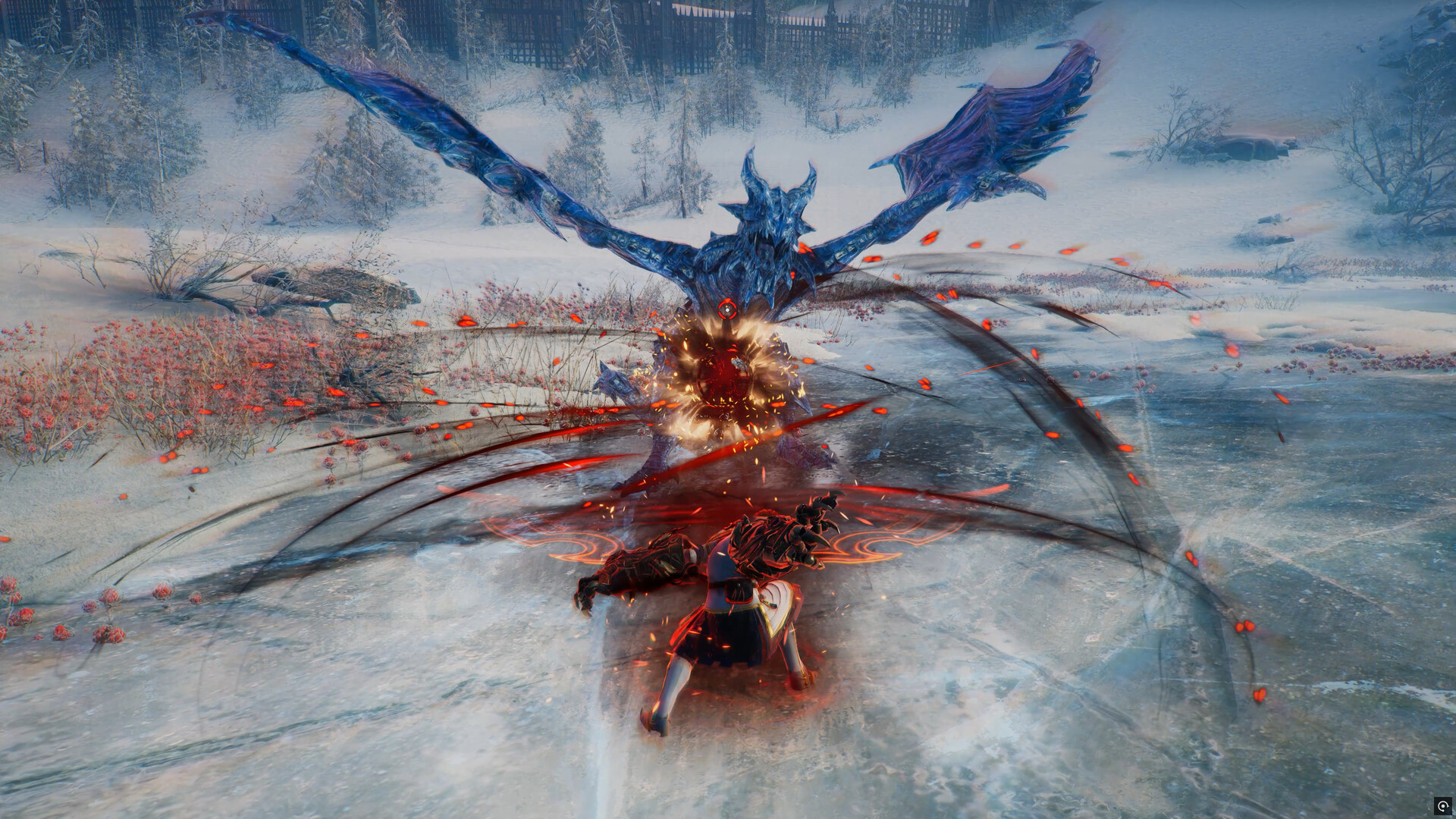
Blocking: By default, blocking is assigned to the Q key, which may be inconvenient as you need to hold the button down continuously. To change this, go to Key Shortcuts, then Character, and reassign blocking to a different key. I recommend using your mouse buttons for this. Queue Abilities: The Queue Abilities function allows you to line up abilities so they are executed one after the other. If you’re out of mana, the attack will automatically trigger once it's replenished. To enable this, go to Settings > Gameplay > Control and turn it on. Skill Bar: Customize your quick slots by navigating to Key Shortcuts and adjusting the keys from 1 to 10. Assign your most powerful skills to slots 1 through 5 and use key combinations for the rest. For example, for a skill assigned to 7, you could set up a combo like Shift + 2. To modify these settings, navigate to Gameplay > Control and activate or disable the following options: Auto-Move to Interactive Target: This setting automatically moves you to the target when you right-click on it. This can cause you to make mistakes during PvE and PvP if you accidentally right-click on the wrong target. Auto-Move within the range to Attack a Target: If you’re out of range, your character will automatically move closer and execute the skill or attack. Auto-Move within the range to use Beneficial Abilities: Your character will automatically move into range to use support skills (e.g., healing). Auto Target Nearest Enemy when Attacking without a Target: By default, you need to manually select an enemy to attack. Enabling this option allows your character to automatically target and attack the nearest enemy when no specific target is selected. You can also customize the target selection method and adjust the priority list to determine which enemies are attacked first, giving you greater control in combat. Classic Mode: This mode allows you to freely select and switch targets with the cursor, which can simplify combat and navigation through the interface. Left mouse button to run: If you prefer not to use the WASD keys to move, you can set your character to run by clicking the left mouse button. [needs classic mode turned on] Here are a few additional settings to enhance your gameplay comfort: Disable Quick Info: Go to Settings > Gameplay > UI > Quick Selection > Show Quick Info and disable it to hide skill descriptions during combat. This will improve your battlefield awareness. Camera Shake: You can reduce or disable camera wobbling under Gameplay > Camera if it bothers you. Photosensitivity: Intense visual effects can be adjusted under Accessibility > Screen. Other settings in this tab may also prove useful. These settings will keep your game looking visually impressive while delivering a solid boost to performance Quality Settings: Anti-Aliasing: Low Ambient Occlusion: Low Screen Space Reflection: High View Distance: High Character Count: Low (PvE) / High (PvP) Post-Processing: High Character Quality: High Shading Quality: High Shadow Quality: Medium Distant Shadow Quality: Low Texture Quality: High Anisotropic Filtering: x16 Effect Quality: High Vegetation Quality: Low Advanced Settings: Depth of Field: Off Motion Blur: Off Chromatic Aberration: Off Lens Flare: Off Level of Detail: Low Character Shadow Quality: Medium Lighting Quality: Medium Terrain Quality: Medium Volumetric Clouds: Low Volumetric Fog: Low Shader Preloading: Epic Hair Strands: Off Optimize Large-Scale Combat: On Use DirectX 12: On Screen Settings: Screen Mode: Fullscreen Resolution: Native Frame Rate Limit: Unlimited Vertical Sync: Off Resolution Rate: 100% For NVIDIA RTX users: DLSS: Balanced For AMD users: FSR: Balanced Game Settings: Order by impact on FPS: High FPS Impact Screen Space Reflections : View Distance Character Count Shading Quality Vegetation Quality Moderate FPS Impact Resolution Character Quality Shader Preloading Texture Quality & Filtering Effects Quality Volumetric Fog Volumetric Clouds Low/Negligible FPS Impact Post-Processing Shadow Quality Distant Shadows Lighting Quality Level of Detail (LOD) Terrain Quality Hair Strands Optimize Large Scale Combat : Useful for older CPUs Recommended for Smooth Gameplay Screen Mode : Fullscreen Frame Rate Limit : Unlimited Vertical Sync : Off Resolution Rate : 100% Delay Camera Rotation: Off — This makes the camera more responsive and smooth. Camera Shake Effects: Off — Avoid camera shake, which can cause dizziness for players sensitive to 3D effects. Go to Gameplay > Chat > Action after sending message and set the option "Close chat window" as the default. This will automatically close the chat window after sending a message, making the interface easier to navigate. --- Источник: https://steamcommunity.com/sharedfiles/filedetails/?id=3342853534
ИсточникGHub Platform · автор22.08.2026, 23:53:26
Blocking: By default, blocking is assigned to the Q key, which may be inconvenient as you need to hold the button down continuously. To change this, go to Key Shortcuts, then Character, and reassign blocking to a different key. I recommend using your mouse buttons for this. Queue…
Войдите, чтобы писать в группе