How to Use an Inspector
GHub Platform · Гайд · 0 ответов · 7 просмотров
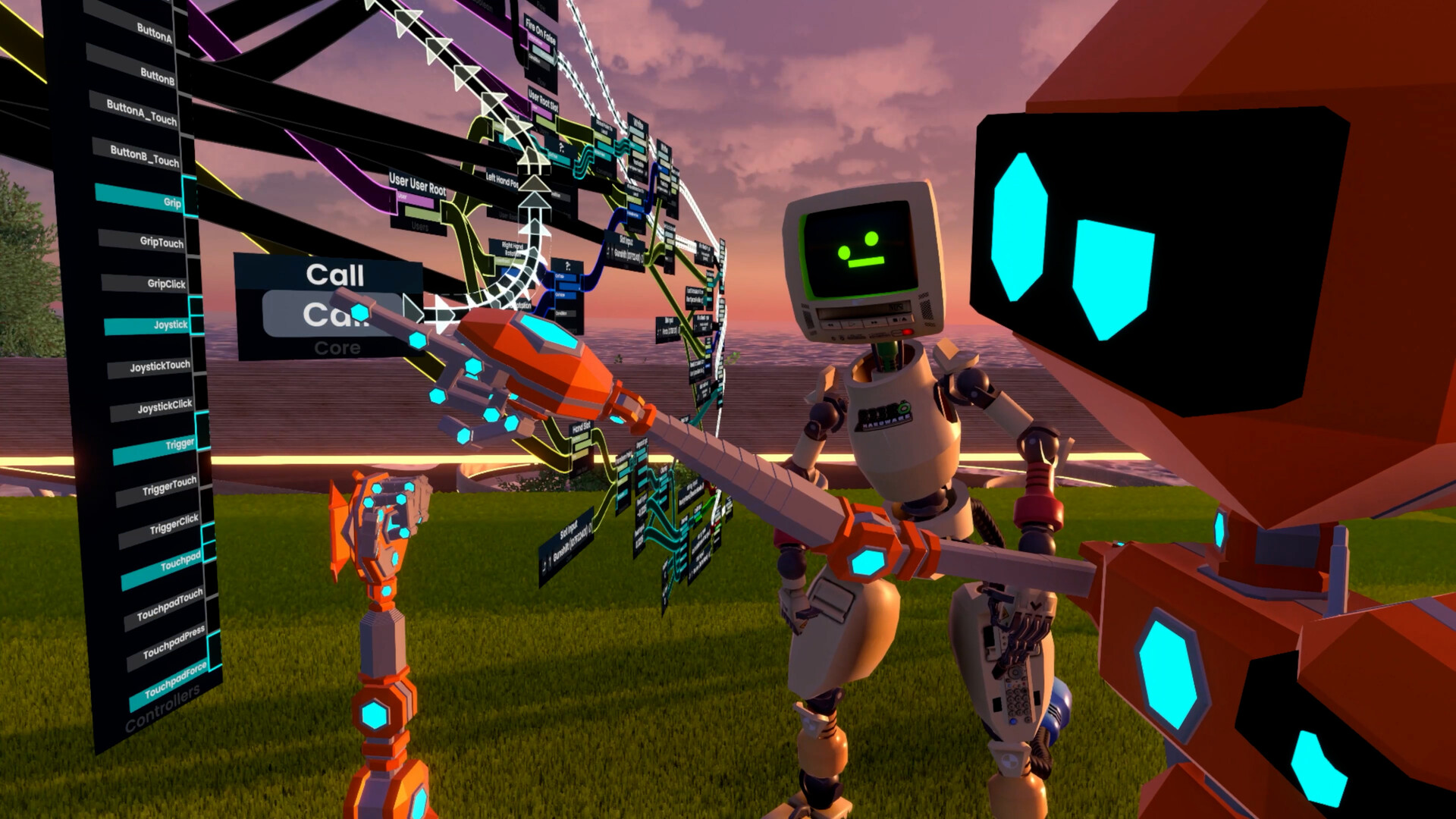
This guide will cover the fundamental, entry-level basics of using an Inspector in Resonite. There are many things this guide does not cover but it should help you as a beginner. Scene Inspector The Scene Inspector is used to navigate all objects (called slots) in a world to view and edit the properties of any object. The scene inspector will let you modify absolutely anything in your current world. Slot Every object in Resonite exists as a Slot. Slots form hierarchies, are positioned in 3D space via their transformation, and may contain Components to add additional behaviour. Hierarchy A slot can contain zero or more slots, forming a hierarchy or "tree". Child & Parent A slot is a child if it is contained within another slot; that slot is its parent. Root The only slot without a parent is the root of the world, which contains all other slots. Component A Component is something that is attached to a Slot to add functionality. Without components, slots would be nothing but points in a void. They are behind almost every feature in Resonite, ranging from storing data to animating your avatar. Information provided by the Resonite Wiki [wiki.resonite.com] . A Developer Tool Tip (often referred to as a Dev Tool} is necessary for creating and interacting with Inspectors in Resonite. Spawning a Dev Tool To spawn a Dev Tool, open your dashboard and go to your Inventory page (yellow backpack icon). All new Resonite accounts by default have the Resonite Essentials folder in their inventory. Double-click Resonite Essentials to open the folder then double-click the Tools folder. In here are all the official creation tools. The Dev Tool is the first one, a glassy sphere with a gizmo inside. Double-click the icon to spawn out the Dev Tool. Alternatively, if you are in desktop mode you can immediately equip a Dev Tool by pressing the 2 key on your keyboard. Equipping The Dev Tool A Dev Tool is an equippable item and can be equipped in various ways. Hovering your laser over and clicking the Dev Tool will open your context menu and give the option to equip it. Physically grabbing the Dev Tool and opening your context menu will also give the option to equip it. Using your laser to grab the Dev Tool then dragging it towards yourself will also equip it when in VR. Dev Tool UI (Context Menu) Once you have the Dev Tool equipped, you can open your context menu to find new options. Create New... Allows you to create new 3D Models, Colliders, Editors, Lights, Materials, Objects, Text, Empty Objects (creates an empty slot), and Particle Systems. Open Inspector Opens a new Scene Inspector. If you have used the Dev Tool to select something, opening an Inspector will focus it to the selected slot. If you do not have anything selected, it will open the Root slot of the world. Gizmo Options When you have a slot selected with the Dev Tool a Gizmo will appear. Gizmos can be used to manipulate the slot; primarily its 3 transforms (position, rotation, scale). Clicking Gizmo Options will give you various options for how to manipulate the slot, depending on what the slot is. Single/Multi By default a Dev Tool can select one slot at a time. When you select something new the previous selection will be un-selected. When set to Multi, you can select multiple slots at a time. Deselect All Deselects all slots and makes their gizmos disappear. This includes slots that other users have selected. Destroy Selected Destroys all selected slots. Deselect Own This is not a vanilla option. It is from a mod I have installed which I did not feel like disabling for this demonstration. You can ignore this option. Selecting With The Dev Tool To select something with the Dev Tool, have it held in your hand/equipped and then press the secondary action button. In desktop mode the default key is R. In VR it will depend on your controllers. If you have Index Knuckles, click in the trackpad (pill-shaped sensor). On Quest controllers, click in the joystick. When a slot is selected, a Gizmo will appear at its position in 3D space. Opening an Inspector while a slot is selected will make the Inspector open with that slot focused. The left panel of the Inspector shows you slots. Slots can contain models, photos, videos, etc,. Any thing in Resonite is in a slot and can be accessed through the Inspector. Selecting a Slot A slot can be selected by double-clicking the text for its name in the list. This will highlight the slot in yellow and open its contents on the right panel of the Inspector. Expanding a Parent Slot's Hierachy To the left of a slot's name is a button icon. If it is a circle, then that slot has no children. If a slot is a parent with children (has other slots attached underneath it) then the icon to its left will be represented by a triangle. When the parent slot is closed, the triangle will be pointing right. When the parent slot is opened, the triangle will be pointing down. You can open or close a slot by clicking this icon. Looking Through The Slot Hierarchy If you want to look through the hierarchy, it will help you a lot to understand 3 of the UI buttons that have to do with slots. Set Root can be used to focus the hierarchy view on the currently selected (highlighted in yellow) slot. If you want to focus on a particular slot and its contents, this button is useful. Object Root can be used to quickly get to the root of your currently focused slot in the hierarchy view. Root Up can be used to move the hierarchy view one slot up, to the parent of your currently focused slot on the hierarchy view. (A table of these icons and their functions can be found in the Inspector UI Buttons section) Toggling a Slot On/Off To the right of a slot's name is a checkbox; this indicates the slot's Active field state. When checked, the slot is active. When un-checked, the slot is inactive. When a slot is inactive, it and its contents are effectively turned off. If a model is inactive it will no longer render, if a sound is inactive it will no longer play, etc,. This can also be done by selecting the slot, focusing it, and toggling its Active field. Moving a Slot A slot can be moved in the hierarchy by pointing at it, grabbing it, hovering over another slot, and releasing it. If you are working with multiple Inspectors, you can grab a slot from one Inspector and move it using another. Moving a slot also moves all its children. Destroying a Slot A slot can be deleted by double-clicking the slot to select it in the hierarchy and then clicking the Delete button (trash can). Deleting a slot also deletes all its children. Duplicating a Slot A slot can be duplicated by double-clicking the slot to select it in the hierarchy and then clicking the Duplicate button (double rectangles). Duplicating a slot also duplicates all its children. Creating a Parent Slot A slot can be given a parent by double-clicking the slot to select it in the hierarchy and then clicking the Insert Parent button. The new parent slot will be named "[Slot Name] - Parent" Creating a Child Slot A slot can have a child slot created under it by double-clicking the slot to select it in the hierarchy and then clicking the Add Child button. The new child slot will be named "[Slot Name] - Child" The following UI buttons allow you to navigate the Inspector and manipulate elements in it. Their functions are basic but are fundamental to understanding how to read and move around what you are working with. Icon Name Function The following UI elements of a slot will be some of the most common pieces of UI you will interact with, so understanding what they are and how they function is helpful to using an Inspector. The attached screenshot shows what a freshly created slot contains upon creation; with no added components. This section does not cover every element, just the ones the basics which you should learn first. 1. Active Field A general-purpose field to "disable" this slot and its components. If a slot is deactiva
ИсточникGHub Platform · автор23.08.2026, 05:16:44
This guide will cover the fundamental, entry-level basics of using an Inspector in Resonite. There are many things this guide does not cover but it should help you as a beginner. Scene Inspector The Scene Inspector is used to navigate all objects (called slots) in a world to vie…
Войдите, чтобы писать в группе