How to make Steam Overlay compatible with the game
GHub Platform · Гайд · 0 ответов · 15 просмотров
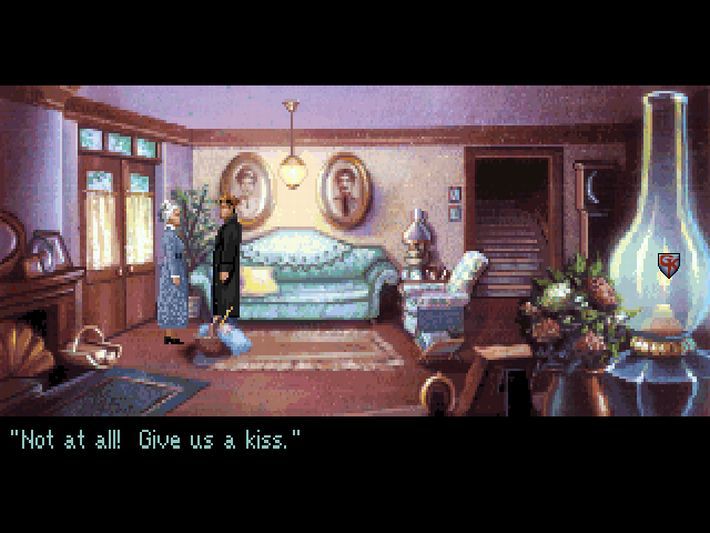
- Go in the game folder directory (default is : X:\Steam\steamapps\common\Gabriel Knight), then go into the "GK1" then "DOSBOX" sub-directories. - Open the "dosboxGK.conf" file with a text editor (notepad, for example). - Search for the line "output=overlay" and replace the "overlay" value with "opengl". - Once the new line now display "output=opengl", save the change and close your text editor. - Run the game and now, Steam Overlay should be working. Note : In old games running under DosBox, Steam Overlay is often a bit laggy (and will be display at the game resolution) but it's still interesting if you want to take screenshots of the game. Screenshots can also be a bit laggy and take a few seconds to be created. You can also use "openglnb" instead of "opengl", which seems to make the overlay a bit less laggy as this option doesn't use bilinear filtering. --- Источник: https://steamcommunity.com/sharedfiles/filedetails/?id=764923828
ИсточникGHub Platform · автор23.08.2026, 05:50:44
- Go in the game folder directory (default is : X:\Steam\steamapps\common\Gabriel Knight), then go into the "GK1" then "DOSBOX" sub-directories. - Open the "dosboxGK.conf" file with a text editor (notepad, for example). - Search for the line "ou…
Войдите, чтобы писать в группе