Улучшение визуальных эффектов с помощью настроек .ini, модов и т. д.
GHub Platform · Гайд · 0 ответов · 9 просмотров
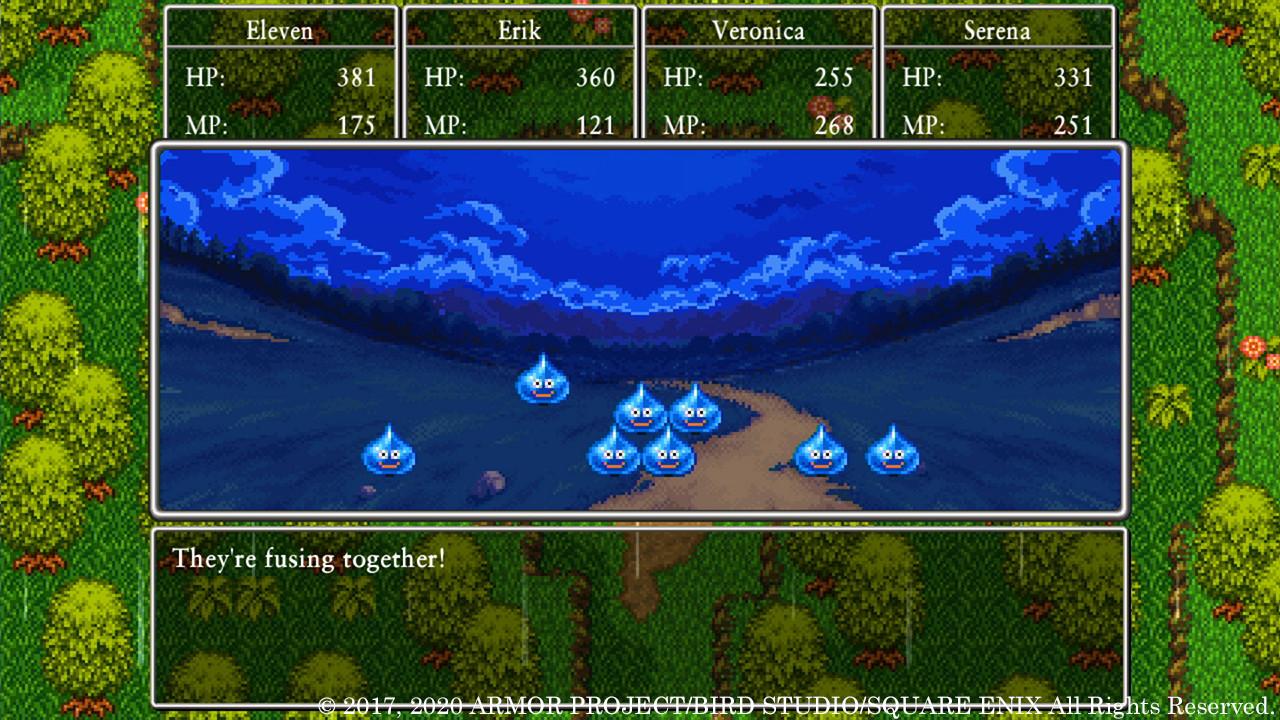
For starters, I can't take any credit for this guide. This is the result of Discord users Fayaya, Ride To Hell Retribution, Havoc, Komodoxeno, and Mike9k1. The goal of this guide is to spread awareness to their Google Sites page that goes into much more detail, but there are some basics to get you going. Also, while I've had no issues running the game with improved visuals, you're still modifying your game. Neither I or any of the aforementioned people who worked on this are responsible for any damage to your game, computer, self-esteem, social life, or financial status as a result of modification. Lastly I'll link to the original Google Sites page where the info for this guide originally came from. It goes into much more detail, so you can check it out here: https://sites.google.com/view/dqxi-commands https://sites.google.com/view/dqxi-commands/faqs/about-project-rebuild Originally posted by NOTICE : Note: There's been numerous improvements since the original publishing of this guide. Keep in mind that there will likely be new additions and changes over time. The outdated info is kept at the bottom for posterity. Project Rebuild is a joint effort within the DQXI-S Modding Community to add the highest quality models and textures from the original (OG) version BACK into Definitive Edition (DE). Module 1 (Player Characters): https://www.nexusmods.com/dragonquestxisdefinitiveedition/mods/22 full size link: https://staticdelivery.nexusmods.com/mods/3496/images/22/22-1617034320-1044937596.png -- (steam guides do not support images larger than 2MB) Module 2 (NPCs): https://www.nexusmods.com/dragonquestxisdefinitiveedition/mods/112 Module 3 (World Elements): https://www.nexusmods.com/dragonquestxisdefinitiveedition/mods/111 full size link: https://staticdelivery.nexusmods.com/mods/3496/images/111/111-1638983602-2101356072.jpeg Module 4 (Animals, Monsters, and Mounts): https://www.nexusmods.com/dragonquestxisdefinitiveedition/mods/163 full size link: https://staticdelivery.nexusmods.com/mods/3496/images/163/163-1665179699-1548650596.png These are the "essential" improvements- they include an improved lighting profile and special plugin that improves the game's rendering. If nothing else, it is recommended to use these two: Dynamic Lighting Adjustments mod by mike9k1: https://www.nexusmods.com/dragonquestxisdefinitiveedition/mods/20 Havoc's Render Fix plugin (DQXI-SDK): https://steamcommunity.com/app/1295510/discussions/0/3117025249764261520 ( Direct download link: https://github.com/emoose/DQXIS-SDK/releases/download/0.7.6.2/DQXIS-SDK_0.7.6.2.zip ) ^Full version only. DQXI-SDK does not support the Demo Other miscellaneous visual improvements not listed above that can further add to the experience: these do not aim to simply replicate the look of the OG version, but rather push the game above and beyond the original version in certain respects. Smoother Animations https://www.nexusmods.com/dragonquestxisdefinitiveedition/mods/118 4k Upscaled Textures https://www.nexusmods.com/dragonquestxisdefinitiveedition/mods/79 The following list some of the least essential improvements. This is really for folks that either: (a) want to see every. last. detail. improved, or (b) want to push the visual experience as far as it can possibly go 4k 60fps Prerendered Cutscenes https://www.nexusmods.com/dragonquestxisdefinitiveedition/mods/83 Objects and Geometry Improvements https://www.nexusmods.com/dragonquestxisdefinitiveedition/mods/110 Weapons and Equipment https://www.nexusmods.com/dragonquestxisdefinitiveedition/mods/146 ------------------------------------------- Assuming you're running the game from Steam, you can find your .ini file here: %USERPROFILE%\Documents\My Games\DRAGON QUEST XI S\Steam\Saved\Config\WindowsNoEditor\ If you're running the Windows Store version of the game, you can find it here: %USERPROFILE%\Documents\My Games\DRAGON QUEST XI S\Xbox\Saved\Config\WindowsNoEditor\ Lastly if you're running the game through the Epic Games Launcher, you can find your .ini here: %USERPROFILE%\Documents\My Games\DRAGON QUEST XI S\Epic\Saved\Config\WindowsNoEditor\ 日本語版でプレイしている人は、異なるフォルダパスを持ちます: Documents\My Games\ドラゴンクエスト XI S\Steam\Saved\Config\WindowsNoEditor\Engine.ini This Engine.ini configuration integrates several improvements and allows you to fully customize the settings used by the game and the Dynamic Lighting Adjustments mod: https://pastebin.com/STU7dH0j You can use the INI Tuning Assistant [sites.google.com] to help you customize it juuuust right for your hardware and personal tastes. Some guidelines (also covered by the tuning assistant linked above)- It can be important to read the comments in order to understand what each tweak does. 1. Some of these tweaks may depend on your configuration- r.ScreenPercentage for example should be no higher than 125 if you run @ 1440p or 4k. But you'd probably want it at 150-200 if you run @1080p or below. 2. Some tweaks will highly depend on your taste- Some folks can't stand motion blur, in which case you'll want to set r.DefaultFeature.MotionBlur=0. r.SSR.Cone is another example 3. Some tweaks provide minor gains for a significant performance hit- usually these are noted in the comments. ( Havoc's original INI v3 can still be found here: https://pastebin.com/xUfTdmYr ) ------------------------------------------- Sometimes you will want to check and see if the values set in the configuration file(s) are being applied in-game. You can do this easily by using the Debug Console. You can also use this to test different cvar values on-the-fly. First, unlock the console by consulting one of these guides: https://sites.google.com/view/dqxi-commands/unlocking-the-console https://steamcommunity.com/sharedfiles/filedetails/?id=2309481155 Enter the name of any cvar to check its value. In this example we'll use r.ScreenPercentage r.ScreenPercentage The value returned "150". If we want to change this value, we simply enter the cvar and the value we want separated by a space (no "=", as in the ini file). r.ScreenPercentage 200 In this case, the change should apply immediately. However, in some cases, you will have to open the character Equipment screen in order for the game to update certain renderer settings. Other times, the value will be set read-only at runtime and will have to be set through the configuration files instead. ------------------------------------------- The Google Sites page lists different profiles depending on how well your system can run the game. Considering there's different ranges for different graphics presets, they've made an INI Tuning Assistant to help others customize their config: https://sites.google.com/view/dqxi-commands/ini-tweaks/ini-tuning-assistant As well, here's a list of cvars you can put in your .ini file to tweak your game even further. (Advanced users only! New link courtesy of Havoc) https://pastebin.com/kWxQVXfu Originally posted by OLD CONFIGURATION -- DO NOT USE! : Now that you've located your Engine.ini file, the most suggested cvars to use will increase draw distance and foliage density. While there's much more you can do, and we'll get to that in a minute, this is the easiest one that most users can get a noticeable boost from: ##ESSENTIAL SETTINGS## r.ViewDistanceScale=2 r.LandscapeLODBias=-2 r.SkeletalMeshLODBias=-2 r.StaticMeshLODDistanceScale=0.25 foliage.LODDistanceScale=15 foliage.DensityScale=7 grass.DensityScale=7 Simply copy the above into your Engine.ini folder, and marvel at the visible enemies in the distance! Please feel free to share your own screenshots/videos! (The mods have been updated/improved numerous times, so videos are ordered from most recent to least recent for the best representation) (^ini config only, Project Rebuild was not released at the time this video was made ) You should now have improved draw distance, model quality, lighting, etc in your game. If you used options such as 4k Textures, etc on top of that
ИсточникGHub Platform · автор30.08.2026, 05:10:11
For starters, I can't take any credit for this guide. This is the result of Discord users Fayaya, Ride To Hell Retribution, Havoc, Komodoxeno, and Mike9k1. The goal of this guide is to spread awareness to their Google Sites page that goes into much more detail, but there are some…
Войдите, чтобы писать в группе