How to PROPERLY install Unification Mod for Warhammer 40,000: Dawn of War - Definitive Edition
GHub Platform · Гайд · 0 ответов · 17 просмотров
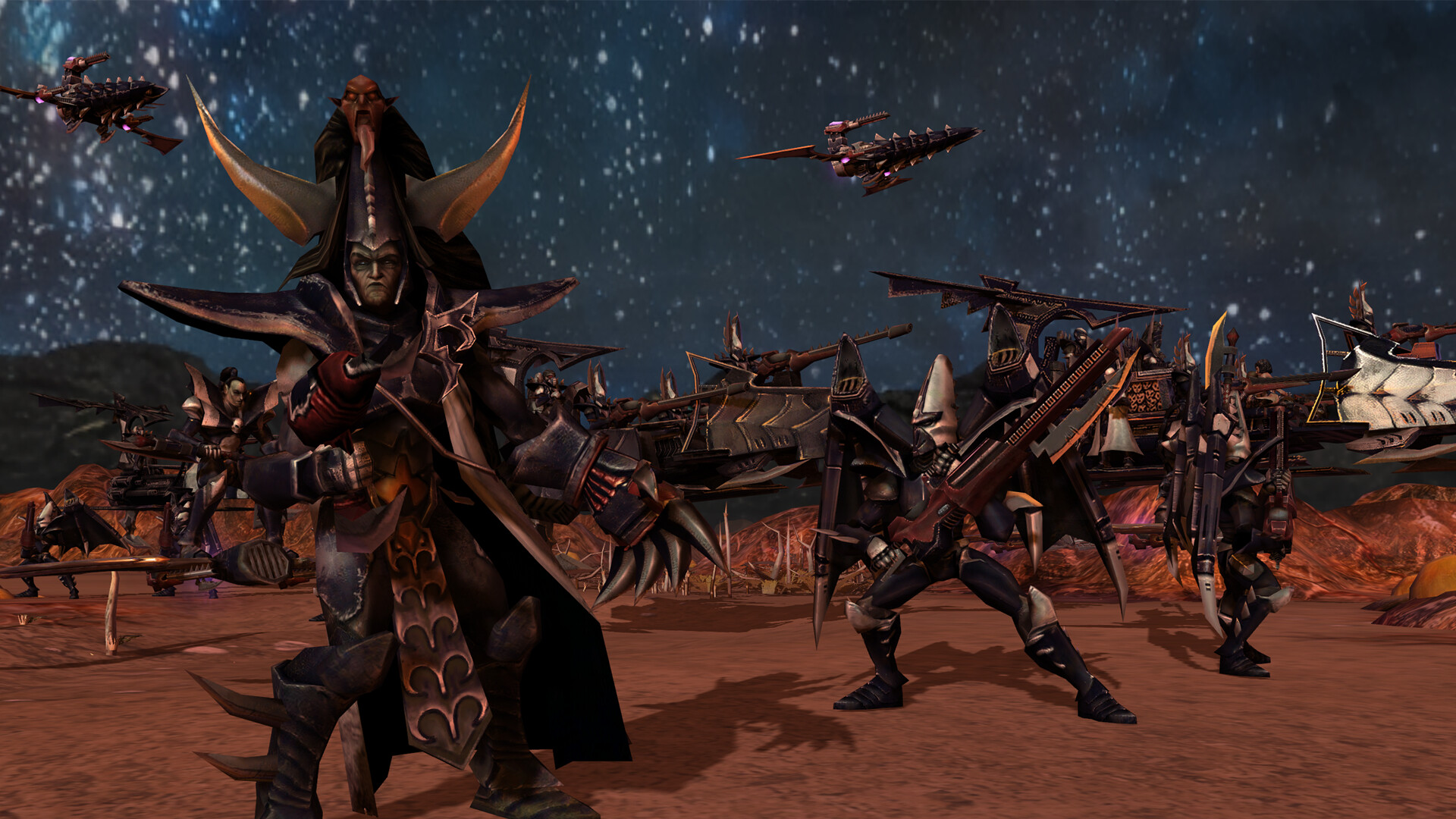
Here is the ModDB link to download Unification version: 7.3.7: https://www.moddb.com/mods/unification-mod-dawn-of-war-soulstorm/downloads/unification-v737 or Nexus Mods if you prefer (download speed was faster when I tested, even on a free account): https://www.nexusmods.com/warhammer40000dawnofwar/mods/340?tab=files Either will work, installation steps are the exact same Downloading from ModDB Select the middle option for the mod files only (not the .exe's) Downloading from Nexus Mods On the FILES tab, select the download for Unification v7.3.5 (the file name is v7.3.5 but the version is actually 7.3.7, dunno why but that's just how it is) It's ~20GB and the download speeds are pretty slow so it might take a while, you only need this file as this guide is for a manual installation of the mod Step 1) Extract the downloaded Unification.7z file, location doesn't matter (downloads folder is fine) Using 7-Zip to extract it is ideal and you should be using 7-Zip anyway, Windows default extraction isn't the best and can't really handle .7z files anyway. You can download 7-Zip from here: https://www.7-zip.org/download.html After installing 7-Zip, simply right click the Unification.7z file and select 7-Zip > Extract to "Unification\" Step 2) The extracted contents should look like this, copy all these files Step 3) Open your Definitive Edition game directory which should have a file path similar to this: DriveLetter:\Steam\steamapps\common\Dawn of War Definitive Edition You can get directly to it by right clicking your game in the Library and selecting Properties. From the Properties window select Installed Files and click Browse to open your directory: After opening the game directory, paste in the copied files from your extracted download Step 4) Once the data has copied over, open the DXP2 folder within your directory and copy the Movies folder: Go back to your game directory > open the new Unification folder and paste the Movies folder from DXP2 to copy the files into your Unification mod That's the install done! Open the game from Steam like normal and click Mods from the main menu: You should see the Unification Definitive Edition and Unification Legacy Edition available to launch from the mods list, select Definitive Edition and click Activate The game should then load and you're good to go, the updated DE version you just installed will have the banner with Unification Definitive Edition instead of Soulstorm The Unification Campaign Addon is not ready yet for Definitive Edition and Team Unification should be publishing it in the coming days. Once the mod is available I'll update this guide with how to get the Campaign Addon working as well Here is the ModDB link to download Unification version: 7.3.6: https://www.moddb.com/mods/unification-mod-dawn-of-war-soulstorm/downloads/unification-v736 It's over 18GB and the download speeds are pretty slow so it might take a while, you only need this file as this guide is for a manual installation of the mod Step 1) Extract the downloaded Unification.7z file, location doesn't matter (downloads folder is fine) Using 7-Zip to extract it is ideal and you should be using 7-Zip anyway, Windows default extraction isn't the best and can't really handle .7z files anyway. You can download 7-Zip from here: https://www.7-zip.org/download.html After installing 7-Zip, simply right click the Unification.7z file and select 7-Zip > Extract to "Unification\" Step 2) The extracted contents should look like this, copy all these files Step 3) Open your Definitive Edition game directory which should have a file path similar to this: DriveLetter:\Steam\steamapps\common\Dawn of War Definitive Edition You can get directly to it by right clicking your game in the Library and selecting Properties. From the Properties window select Installed Files and click Browse to open your directory: After opening the game directory, paste in the copied files from your extracted download Step 4) Once the data has copied over, open the DXP2 folder within your directory and copy the Movies folder: Go back to your game directory > open the new Unification folder and paste the Movies folder from DXP2 to copy the files into your Unification mod That's the install done! Open the game from Steam like normal and click Mods from the main menu: You should see the Unification Mod available to launch from the mods list, select it and click Activate The game should then load and you're good to go. You can tell if this older version is installed because the banner will say Unification Soulstorm instead of Definitive Edition The above 7.3.6 guide is the Soulstorm version of the mod installed into Definitive Edition so there are some bugs. Use the 7.3.7 guide at the top of the page instead --- Источник: https://steamcommunity.com/sharedfiles/filedetails/?id=3576208009
ИсточникGHub Platform · автор30.08.2026, 05:44:12
Here is the ModDB link to download Unification version: 7.3.7: https://www.moddb.com/mods/unification-mod-dawn-of-war-soulstorm/downloads/unification-v737 or Nexus Mods if you prefer (download speed was faster when I tested, even on a free account): https://www.nexusmods.com/warh…
Войдите, чтобы писать в группе