Performance tweaks for the Low End PC (Working)
GHub Platform · Гайд · 0 ответов · 17 просмотров
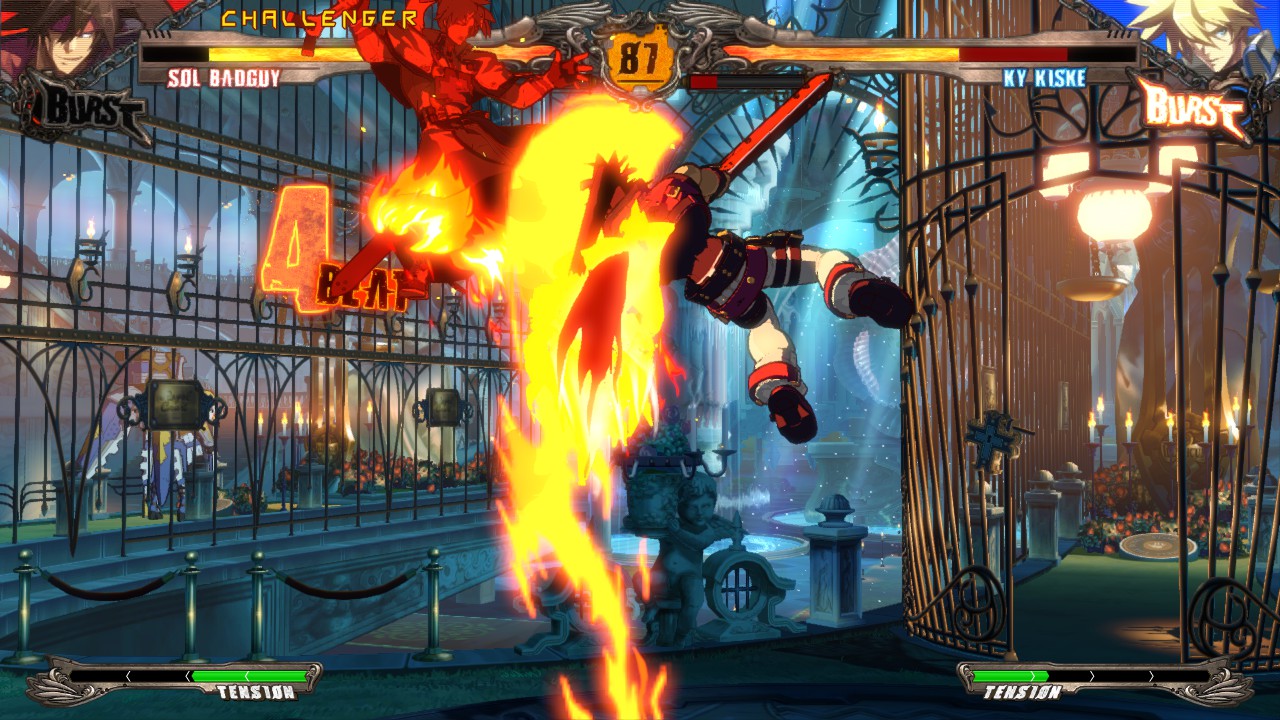
Back Up your files before editing it or replacing it, as if you don't, you might have to download the game again and that is a pain in the ass, so, be carefull with those ini files. First off, i'll introduce to my pc specs, the potato masher which i made the experiment with. It is a laptop HP pavilion G7 series AMD A8 4500m APU Cuad Core 1.9 Ghz with turbo up to 2.8 Ghz (But in Task mannager never goes more than 2.3 Ghz on turbo clock speed) AMD Radeon HD 7640g Ram 4 Gig ddr3 at 1066 Mhz Since you came here last time, i was reading comments about the tweak not working for some people, well, there is an story about why, but since i know you want to get to the point, i'll leave the old way and the actual way to apply the text file, so it works all right. The file that needs to be tweaked is REDSystemSettings.ini, that file is on your Guilty Gear Xrd Revelator directory, under REDGame Steam\Steamapps\common\GUILTY GEAR Xrd -REVELATOR-\REDGame\Config Update: If for any reason the game refuses to aknoledge the redsystemsetting file, we have to look for another file located in this folder. Steam\Steamapps\common\GUILTY GEAR Xrd -REVELATOR-\Engine\Config Here you will encounter another file that probably is overwriting everything with the redsystemsetting.ini, that file is called BaseSystemSettings.ini, and that file needs to be modyfied too, in order to tweak the graphics so you gain more performance in game. Both files are exactly the same setting and structure, so what i will tell you next, can apply for both files as well......sorry for taking to long to understand how it works, as i'm not an developer on an expert in those matters. As known in the other guide on Xrd Sigh by DevaL, many effects play an important role in gaining FPS, but the ace in the hole is one key value, that one is... FloatingPointRenderTargets=True This parameter, when changed to false will boost performance up to 10 fps, so, keep this in mind, the downside.....no shadows below characters, also no Bloom for some reason (even if you leave it Bloom=True in the config file section.....but as you might have a low end PC, it will be a minimal set back. This is how must be set. FloatingPointRenderTargets=False There are other parametters that you can play with, some like resolution, bloom, ambient occlusion, in fact, many of this setting can be turn to false in orther to gain minimal fps increments, but is up to you, to decide which ones will make a decent benefit for you. Some of those are. DirectionalLightmaps=False MotionBlur=False MotionBlurPause=False DepthOfField=False AmbientOcclusion=False Bloom=True bAllowLightShafts=False Distortion=False FilteredDistortion=False DropParticleDistortion=False SpeedTreeLeaves=False SpeedTreeFronds=False OnlyStreamInTextures=False LensFlares=False FogVolumes=False FloatingPointRenderTargets=False OneFrameThreadLag=False UseVsync=False UpscaleScreenPercentage=False Fullscreen=True AllowOpenGL=False AllowRadialBlur=False AllowSubsurfaceScattering=False AllowImageReflections=True AllowImageReflectionShadowing=False bAllowSeparateTranslucency=False bAllowPostprocessMLAA=False bAllowHighQualityMaterials=False Those are in my ini file alreaddy set to false so, no worries to play with those. There is one parameter called DynamicLights, if you set that to False, The Stage floor will disapear (thanks to Shadowlet for the tip) A note here: after saving the file, it is best to do right click and propieties to the file and set it as read only file, as if you have the game in 2 compurers, the ini will be overwriten the next time you play the game in your potato masher.... Keep in mind that in the game, you can go to option, Display Settings and set the first option (Image quality settings) to "performance", the game will look more pixelated but it will help to squeeze 1 to 5 more FPS. The file can be downloaded here. Remember, this file can be replaced directly in to the REDGame/Config directory, or, you can change the name of the file to BaseSystemSettings.ini and replace the one in Engine/Config directory to take the performance effects. https://drive.google.com/open?id=1dB1JMWv6YWbQppUueBxvUMcIKdSpJxiu This will not be a super guide, but i'm glad to help with this little discovery, and i hope this will be worth it for other guys like me, with crappy laptops XD. Here a video testing my tweaks on the machine mentioned before And, thanks for your attention. I might have not the best english around, but if this guide helps you, then, i can't be more happy for it. --- Источник: https://steamcommunity.com/sharedfiles/filedetails/?id=861031815
ИсточникGHub Platform · автор30.08.2026, 05:55:38
Back Up your files before editing it or replacing it, as if you don't, you might have to download the game again and that is a pain in the ass, so, be carefull with those ini files. First off, i'll introduce to my pc specs, the potato masher which i made the experiment with. It…
Войдите, чтобы писать в группе