Руководство по совместимости Steam Deck — Dino Crisis 2
GHub Platform · Гайд · 0 ответов · 17 просмотров
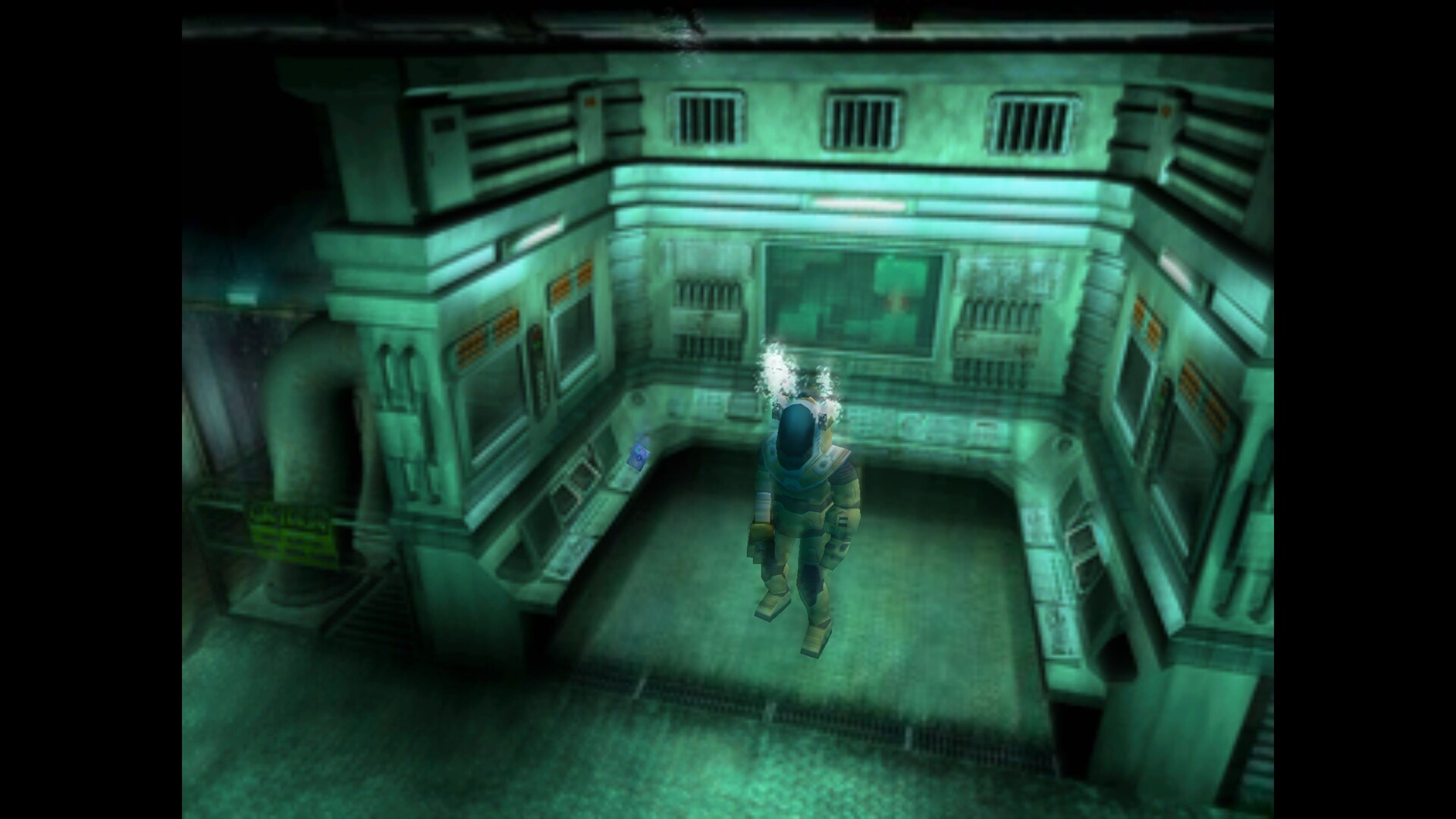
This guide explains how to run Dino Crisis 2 on Steam Deck in Gaming Mode without crashes or launcher errors. The launcher is bypassed entirely . No regedit settings or anything. No launch options are required. In some specific scenarios you can use Troubleshooting section from Dino Crisis 1 Compatibility Guide Working configuration: Proton Experimental No launch options Launcher bypassed by replacing executable Community controller layout “Fixed” Gameplay works in Gaming Mode Known issue: FMV cutscenes do not play correctly in Gaming Mode (see WIP section below) The Steam release uses a .NET launcher that causes registry errors and crashes under Proton . We bypass it completely. Manually move game files to root folder To run the game via Desktop or Game Mode, make these steps: Go to: Dino Crisis 2 → Properties → Installed Files → Browse Copy ALL contents from the /english folder into the game root folder Delete 4249140_launcher.exe from root folder Rename Dino2.exe to 4249140_launcher.exe Now Steam launches the game executable directly instead of the launcher. No launch options are needed, no registry errors. Steam Deck users need ProtonUp-Qt to install enhanced Proton builds: in Desktop Mode: Open Discover Search for ProtonUp-Qt and install it Run ProtonUp-Qt → choose Steam → Add Version Install the latest Proton GE build Now, in Steam: Go to Dino Crisis → Properties → Compatibility Check Force compatibility tool Select your new GE-Proton version (10.31 at the moment) Proton GE is often more compatible with older Windows games than stock Proton. Using Proton Experimental causes video glitches. Default Steam Deck layout is confusing. Use Community Layout: Open Controller Settings Browse Community Layouts Select layout named Gamepad With Joystick (Fixed) This is the same layout used successfully for Dino Crisis 1. It restores proper tank controls and button mapping. There is some list of issues and solutions that may work for you or other cases. Replace dc2.reg file contents Original dc2.reg is dummy, so there is updated version. Just open it in game folder and replace all contents with this one: Windows Registry Editor Version 5.00 ; ===== CAPCOM INSTALL KEYS ===== [HKEY_LOCAL_MACHINE\SOFTWARE\CAPCOM\DINOCRISIS2] "InstallDir"="Z:\\home\\deck\\.local\\share\\Steam\\steamapps\\common\\4249140_DinoCrisis2\\" "InstallPath"="Z:\\home\\deck\\.local\\share\\Steam\\steamapps\\common\\4249140_DinoCrisis2\\" [HKEY_LOCAL_MACHINE\SOFTWARE\WOW6432Node\CAPCOM\DINOCRISIS2] "InstallDir"="Z:\\home\\deck\\.local\\share\\Steam\\steamapps\\common\\4249140_DinoCrisis2\\" "InstallPath"="Z:\\home\\deck\\.local\\share\\Steam\\steamapps\\common\\4249140_DinoCrisis2\\" ; ===== CURRENT USER KEY ===== [HKEY_CURRENT_USER\Software\CAPCOM\DINOCRISIS2] "InstallDir"="Z:\\home\\deck\\.local\\share\\Steam\\steamapps\\common\\4249140_DinoCrisis2\\" ; ===== STEAM UNINSTALL ENTRY ===== [HKEY_LOCAL_MACHINE\SOFTWARE\Microsoft\Windows\CurrentVersion\Uninstall\Steam App 4249140] "DisplayName"="DINO CRISIS 2" "InstallLocation"="Z:\\home\\deck\\.local\\share\\Steam\\steamapps\\common\\4249140_DinoCrisis2\\" [HKEY_LOCAL_MACHINE\SOFTWARE\WOW6432Node\Microsoft\Windows\CurrentVersion\Uninstall\Steam App 4249140] "DisplayName"="DINO CRISIS 2" "InstallLocation"="Z:\\home\\deck\\.local\\share\\Steam\\steamapps\\common\\4249140_DinoCrisis2\\" --- Источник: https://steamcommunity.com/sharedfiles/filedetails/?id=3666309276
ИсточникGHub Platform · автор30.08.2026, 19:52:19
This guide explains how to run Dino Crisis 2 on Steam Deck in Gaming Mode without crashes or launcher errors. The launcher is bypassed entirely . No regedit settings or anything. No launch options are required. In some specific scenarios you can use Troubleshooting section from D…
Войдите, чтобы писать в группе