INI Tweaks to Improve Your Game
GHub Platform · Гайд · 0 ответов · 5 просмотров
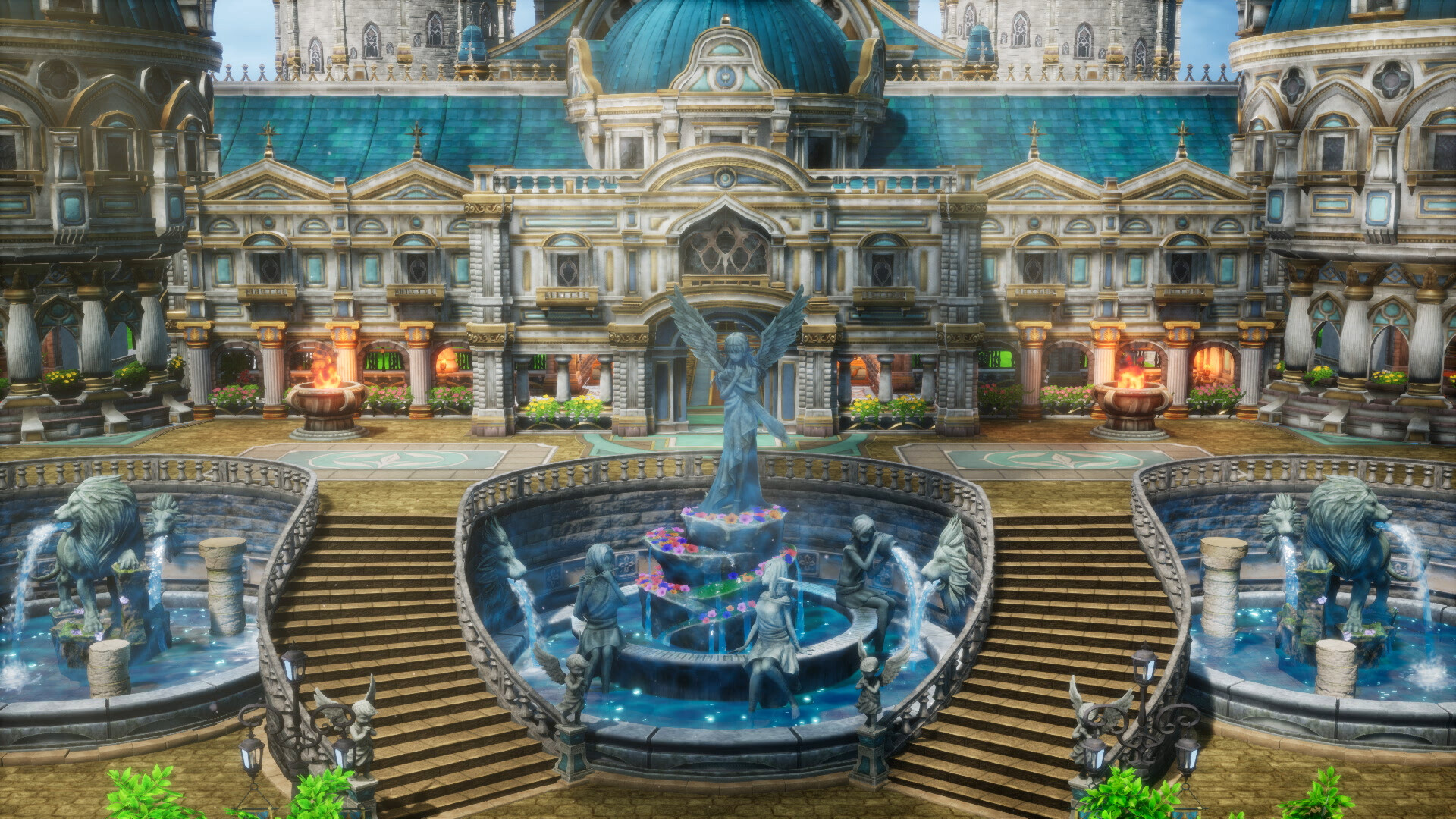
All tweaks in this guide are accomplished by editing .ini files. No need to download mods or use third-party tools. The tweaks below will need to be added to your "Engine.ini" file which should be located in the "Documents\My Games\DRAGON QUEST III HD-2D Remake\Steam\Config\WindowsNoEditor" folder. You shouldn't need to change the file to read-only. The game modifies the file during play but it doesn't remove or change anything you put there. The game gives you a 30 and 60 FPS limit in the options menu. However, you can force a higher limit if you want to take advantage of your high refresh rate display and make the game look smoother. Add the following lines to the "Engine.ini" file: [/script/engine.engine] bUseFixedFrameRate=True FixedFrameRate=120 This sets the FPS limit to 120. Change the number to whatever FPS limit you desire. Keep in mind that using this method will cause the game to run slower (like slow motion) if your system can't keep the game running at the rate you set. So don't set the frame rate higher than your system can handle. Warning: I've encountered a staircase in the Tower of Transcendence that you can't climb if your FPS is higher than 144. You might be able to force your way up by holding the run button depending on your FPS. I was able to at 160 FPS but not at 240 FPS. I also had a little difficulty climbing a ladder in Aliahan but was able to successfully climb it about half the time by just moving back and trying again. TLDR: Set your frame rate to 144 or lower to avoid potential problems. It is possible to either remove bloom or reduce the strength of it. Add the following lines to the "Engine.ini" file: [/script/engine.renderersettings] r.BloomQuality=0 By setting the number to 0, the bloom effect will be removed. You can also adjust the strength of it by changing the 0 to a number from 1 to 5. The game uses 5 by default which is the strongest. Click Here [imgsli.com] for a comparison of all the different bloom qualities. Here's a screenshot of bloom set to 5 (game default): Here's a screenshot of bloom set to 3: Here's a screenshot of bloom set to 0 (off): You can change the type of anti-aliasing the game uses. By default the game uses FXAA as the anti-aliasing method. The anti-aliasing option in the game only changes the quality of the anti-aliasing method used. Add the following lines to the "Engine.ini" file: [/script/engine.renderersettings] r.DefaultFeature.AntiAliasing=1 The number here determines which type of AA to use. You can set it to the following values: 0 - Turns off AA 1 - FXAA (game's default) 2 - TAA 3 - MSAA (buggy) Click here [imgsli.com] for a comparison of the different types of AA. I took the screenshots in a lower 1080P resolution to better show the aliasing. I normally play in 4K so the aliasing isn't as bad for me. I personally like the look of MSAA the best but I've noticed a few graphical glitches with it, such as enemies in combat being partially transparent for some reason. Thus, I don't recommend MSAA. You can change the shadow resolution to improve the look of shadows. Warning: This change can impact your performance. Add the following lines to the "Engine.ini" file: [/script/engine.renderersettings] r.Shadow.MaxCSMResolution=4096 The default resolution is 2048 at the highest shadow setting. You can increase this to 4096 to make the shadows look noticeably better. You can also set it to 8192 but this is very performance heavy and can tank your frame rate in certain areas, thus I don't recommend going above 4096. Click here [imgsli.com] to see a comparison of the different shadow resolutions. Click here [imgsli.com] to see another comparison. It is possible to increase the draw distance of foliage. Warning: This change can impact your performance. Add the following lines to the "Engine.ini" file: [/script/engine.renderersettings] r.StaticMeshLODDistanceScale=0.5 The default setting is 1. By setting this to 0.5, you can render foliage at a greater distance. You can set this value even lower but very rarely are you able to see far enough in the distance to make a difference and it will hurt performance even more, so I don't recommend it. Click here [imgsli.com] to see a comparison. Click here [imgsli.com] to see another comparison. I've checked for many other possible tweaks but in my testing they either didn't do anything (as far as I could tell) or the difference was almost imperceptible, so I didn't bother including them here. If anyone has found some other useful INI tweaks, I'd love to hear about them. --- Источник: https://steamcommunity.com/sharedfiles/filedetails/?id=3367365819
ИсточникGHub Platform · автор30.08.2026, 22:46:38
All tweaks in this guide are accomplished by editing .ini files. No need to download mods or use third-party tools. The tweaks below will need to be added to your "Engine.ini" file which should be located in the "Documents\My Games\DRAGON QUEST III HD-2D Remake\Ste…
Войдите, чтобы писать в группе