How to: Enable Steam Overlay / Change the resolution / Apply image filters
GHub Platform · Гайд · 0 ответов · 15 просмотров
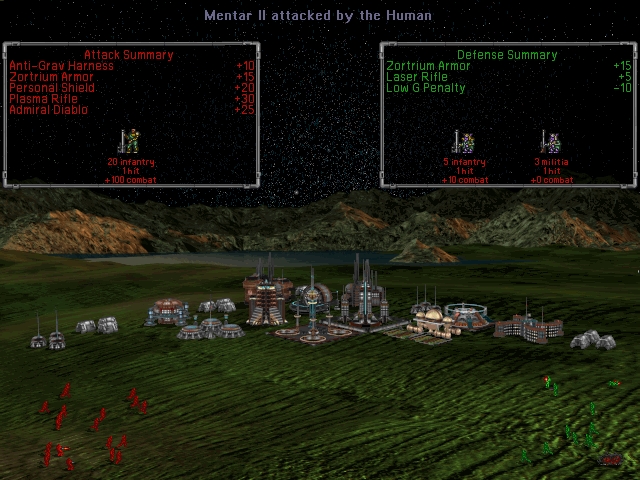
To access the game's files, right click on Master of Orion 2 in your library > Choose properties > Local files tab > Browse local files. Now open the dosboxMOO2.conf file with the Notepad software. Now let's get started: The original DosBox configuration uses Direct Draw to render the graphics. Mind you that Direct Draw were used before we have proper DirectX, and it isn't compatible with Steam Overlay, so that's why at first the Overlay won't work. To make Steam Overlay work with Master of Orion 2, you'll need to configure DosBox to use OpenGL for rendering. To do this, open the dosboxMOO2.conf file and search (using Ctrl + F) for the line: output=overlay Now, erase the "overlay" and write "opengl" (without quotation marks). That's it. Honestly, I wouldn't use Steam Overlay, as it's a bit glitchy with Master of Orion 2 (by the way, if the Overlay pop-up glitch, press Shift + Tab two times). But feel free to use it - it's better to have the option to use it or not anyway. To change the game's resolution, in the dosboxMOO2.conf file search for the line "fullresolution=" (for the fullscreen resolution) and "windowresolution=original" (for the windowed resolution). Now change those to your desired resolution. For instance: fullresolution=1920x1080 windowresolution=1280x720 Keep in mind that the resolution will increase, but you won't have widescreen. The game will keep the 4:3 aspect ratio, not streched. To alternate between fullscreen and windowed, just press Alt + Enter ingame. To apply an image filter, in the dosboxMOO2.conf file, search for the line: scaler=normal2x Erase the "normal2x" and choose your favorite filter (check below for examples) Source: https://www.dosbox.com/wiki/Scaler For instance, I use this one for a light image filtering: scaler=advinterp2x You can apply these changes to any DosBox game you have. Just search for the dosbox.conf file (or something similar) on the game you want and edit it. That's all. If you have any questions or have something to add, let me now. Have fun! 🌌 --- Источник: https://steamcommunity.com/sharedfiles/filedetails/?id=2024573109
ИсточникGHub Platform · автор06.09.2026, 03:18:14
To access the game's files, right click on Master of Orion 2 in your library > Choose properties > Local files tab > Browse local files. Now open the dosboxMOO2.conf file with the Notepad software. Now let's get started: The original DosBox configuration uses Direct Dra…
Войдите, чтобы писать в группе