Please, Touch the Artwork - The Style and Boogie Woogie Guide
GHub Platform · Гайд · 0 ответов · 15 просмотров
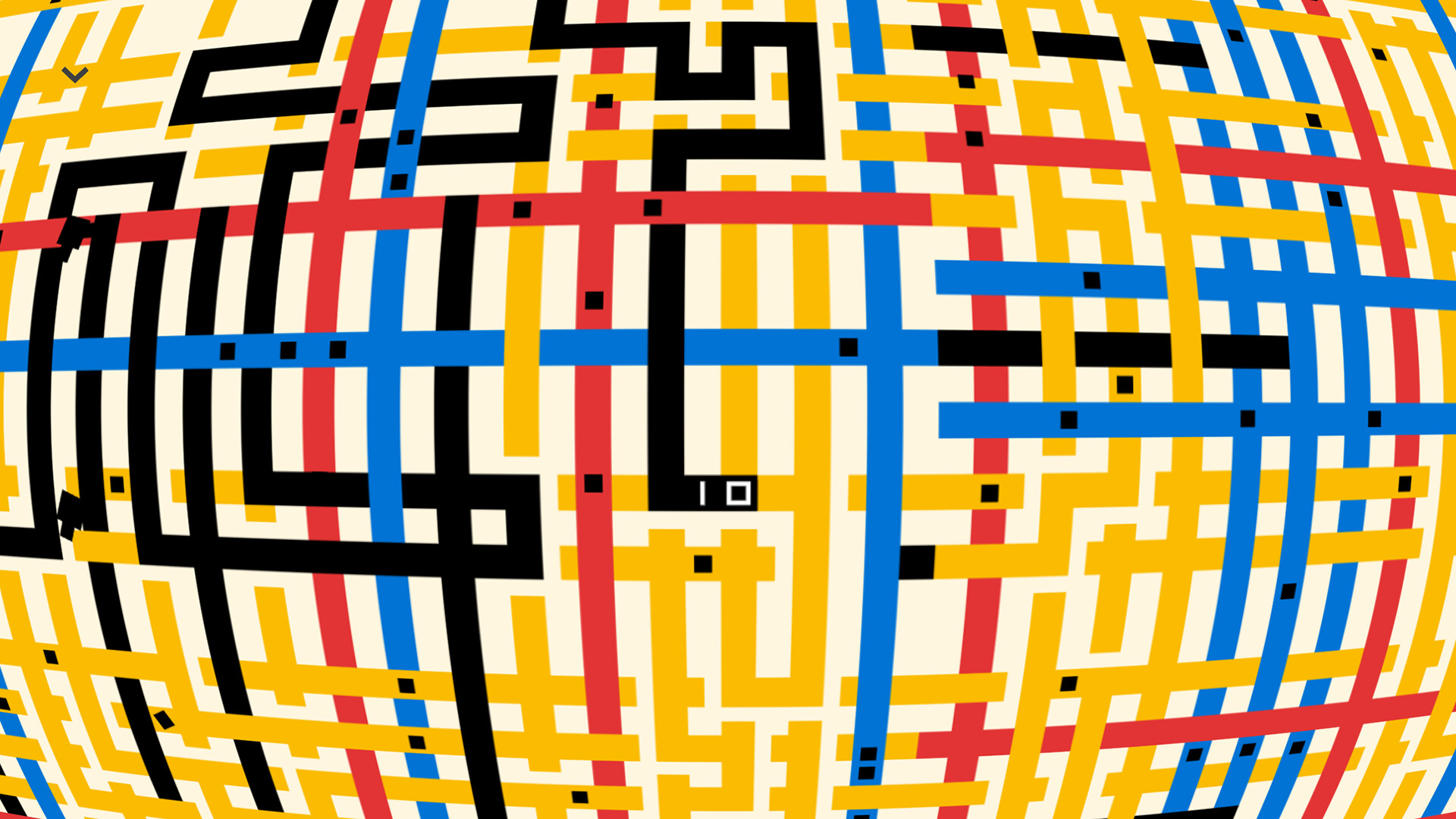
I'm not covering the New York gallery, as that's more of a meditative experience than a puzzle I've written out directions to the puzzles of the Style and Boogie Woogie galleries, in addition to annotated photos The Style photos will have annotations of what to do and what order. The Boogie Woogie photos will have the origins annotated in the order of what to do When doing the Boogie Woogie gallery, keep in mind that those puzzles flip and randomize with each play, so my directions are a possible solution 1. Click on the black square for the intro and then on the new black square to complete the puzzle 2. Create a horizontal line from the middle point. 3. Create a horizontal line from the middle and lower point 4. First, create a vertical line from the second point, then create a horizontal from the lowest of the five points on the left side 5. Create a vertical line from the first point, then a horizontal line from the highest point on that line. Then, create a vertical line from the horizontal line at the next point before creating a final horizontal line from the new vertical line at the the bottom 6. Use the new cross ability at the center point 7. Create a vertical line in the middle. Use the cross in the middle and then the vertical line on the left side of the new horizontal line. 8. Create a vertical line from the top side and then create a cross at the lowest point of the vertical line. Use the vertical line on the left side of that line. Finally, use the cross to create the remaining lines on the first vertical line. 9. Use the horizontal line on the second to last point on the left. Use the vertical line in the middle. Use the horizontal cross on the new vertical line and then the vertical cross on the horizontal line. 10. Create a horizontal line from the second to last point and then create a verical line on the second point at the top. Use the horizontal cross on the new vertical line before using the vertical cross on the new horizontal line. Use the horizontal line on the original vertical line and then place the final vertical line 11. Colors fill up adjacent panels from the one clicked on. Click on the upper panel 12. Click on the upper left panel 13. Click on the upper right panel 14. Click on the upper left panel 15. Click on the bottom panel then the top panel 16. Click on the left panel, then the upper left panel 17. Click on the top panel, then the center panel 18. Click on the long rectangle on the right side then the bottom right panel 19. Click on one of the middle rectangles, then the upper right yellow panel. Finally, hit the bottom yellow panel 20. Click on the center rectangle, then the top middle panel, then the upper right panel. 21. Click on the lower of the two rectangles on the right side, then the middle panel on the left. Finally, hit the lower left corner panel 22. Hit the upper right corner, then the bottom middle, and finally the upper left corner 23. Hit the upper left corner, then the bottom right corner. Then, the center rectangle on the right before the center rectangle on the left 24. Hit the big rectangle in the center. Click on the upper left and then upper right panels. Finally, hit the center panel in the second to bottom row 25. Click on the square on the right side and then the upper right corner. Hit the little blue rectangle in the upper middle. Finally, hit the white rectangle in the lower left side to get rid of the blue 26. Click on the leftmost of the two thin rectangle on the top side before hitting the little rectangle to the diagonal right of it. Then, hit the rectangle one diagonal right of that for red. Finally, hit the red rectangle beneath that 27. Hit the bottom rectangle, then the square in the right middle, and then the upper left corner. The white color is redundant, so just hit the red rectangle on the left middle twice in a row 28. Hit the rectangle in the top middle, then the upper right corner, and then the middle right panel. Like the last puzzle, the white is redundant, so click the yellow rectangle in the upper left corner twice. 29. Click on the thin rectangle in the bottom row and then the lower left corner. Hit the thin middle rectangle in the center of the upper row. Finally, hit the bottom right corner and then the upper left corner. 30. Click on the square in middle of the left side before hitting the lower left corner. Click on the little square in the center of the upper left corner. Then, the long vertical rectangle in the middle of the upper right corner. Finally, click on the lower right corner. 31. Click on the lower left corner 32. Click on the top, then the bottom left corner, then the yellow panel on the right 33. Click on the long black rectangle at the top, then the center rectangle in the second row from the bottom. Finish off with the leftmost rectangle in that row before heading down to the lower left corner. 34. The white is a little redundant, so just use it on the rectangle that should be yellow at the end. Then, click on the vertical rectangle on the right. Hit the panel that should be red on the top and then the upper right corner. Circle back and click on the yellow rectangle 35. The canvas is flipped, which affects nothing. Click on the big rectangle in the lower left and then the yellow rectangle. 36. Click on the little square in the upper right corner and then the longrectangle in the upper left corner. Then, hit the long rectangle above the thicker one in the lower left corner before hitting the center square on the right 37. Click on the upper right panel and then the thin rectangle beneath it. Hit the lower left corner. The white is redundant, so click on the red rectangle on the left side twice in a row 38. Click on the thin rectangle on the left, and then hit the square beneath it, before hitting the square beneath that. Click on the big rectangle in the lower right corner, the big rectangle at the top, and then lower right corner again. 39. Use the vertical cross on the right and then use the red on the new panel in the upper right. Use the next vertical cross on the rightmost point and then use the blue on the new red panel we have to keep. 40. Use the horizontal line on the lowest point and then use black on the big panel. Use the next horizontal line on topmost point to create a new panel, and then use the black on the big middle panel again. Finally, use the line to create the last line. 41. Use the horizontal cross on the left vertical line and then use the yellow in the upper left corner. At the same point, use the vertical cross. Use the horizontal cross on the right vertical line before using the yellow in the lower left corner. 42. Use the horizontal line to create the long white rectangle in the upper left corner, then click on that rectangle. Use the next line to make another long rectangle beneath it before clicking on the first rectangle again. Use the line to block off a black section of the rectangle on the right before finally clicking on the white rectangle for the third time 43. Use the vertical line to make the rectangle on the far right and then click the big white space. Use the next line to make the rectangle on the far left and click on the new rectangle. The next line will make the red rectangle and click on an adjacent rectangle to color it. Finally, make the last split and click on the blue rectangle. 44. First, make the line of the rightmost point and click on the thin new rectangle. Use the horizontal cross to make the high horizontal line and then click on the big rectangle. Next, use the horizontal cross one notch lower than the last and hit the yellow rectangle again. Finally, use the horizontal cross on the lowest point and click on the long blue rectangle in the lower left corner 45. First, use the vertical line on the second point and click on the bigger half. Use the horizontal cross to create the lower line and click on the yellow rectangle in the upper left corner. Next, use the other horizontal cross
ИсточникGHub Platform · автор06.09.2026, 04:57:34
I'm not covering the New York gallery, as that's more of a meditative experience than a puzzle I've written out directions to the puzzles of the Style and Boogie Woogie galleries, in addition to annotated photos The Style photos will have annotations of what to do and what order.…
Войдите, чтобы писать в группе