Deblur F1 23 - Fix blurry graphics
GHub Platform · Гайд · 0 ответов · 19 просмотров
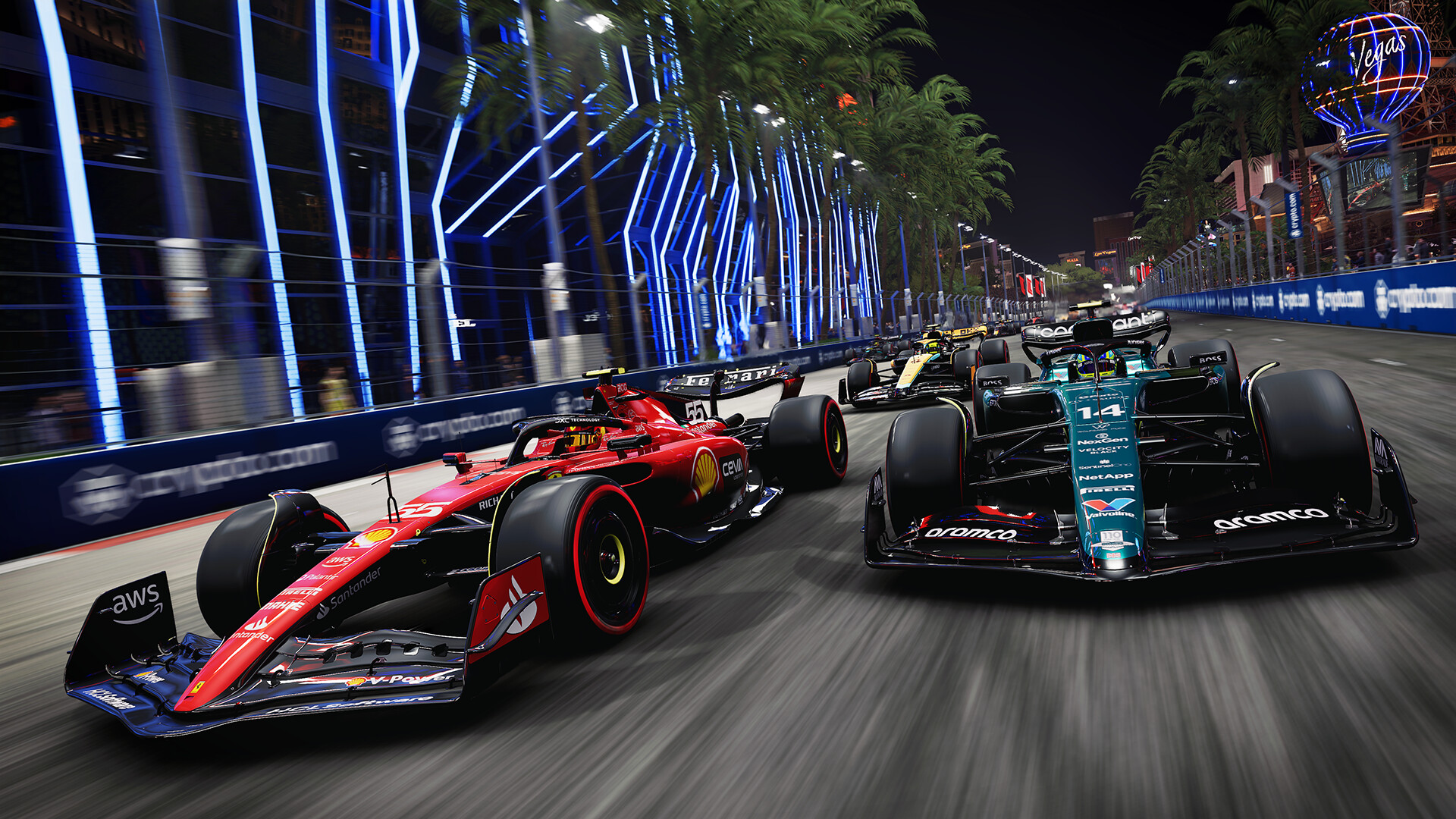
Improving clarity: Options -> Settings -> Graphics Settings Motion Blur Strength -> 0 Chromatic Aberration -> Off Options -> Settings -> Graphics Settings -> Video mode Dynamic Resolution -> Off Anisotropic Filtering -> 16x Recommended for performance: Options -> Settings -> Graphics Settings Ray Tracing Quality -> Medium Ray Traced Shadows -> Off Ray Traced Reflections -> Off Ray Traced Ambient Occlusion -> Off Ray Traced Transparent Reflections -> Off Ray Traced DDGI -> Off Crowd -> Low Ground Cover -> Low Trees -> Low High Quality Hair -> Off Set the following options inside the game as well: Options -> Settings -> Graphics Settings Anti-Aliasing -> TAA Only Post Process -> Low Quit the Game Anti-Aliasing: Not my video, but a good explanation on why TAA is not good: There is no way to disable Anti-Aliasing within the menu. There is no other technique of Anti-Aliasing implemented other than TAA or downscaled stuff like DLSS or FSR in this game. Luckily you can toggle these options off inside of the F1 23 settings file: Open Explorer -> Documents -> My Games -> F1 23 -> hardwaresettings -> hardware_settings_config.xml Edit Line 17: <antialiasing taa="false" checkerboard="false" cmaa2="false" dlss="false" cas="1" fsr="0" fsr2="0" xess="false" /> Enjoy no Anti-Aliasing and the raw sharpness. Post Processing: There is motion blur hidden in the Post Processing even with option inside of the menu turned to low. Make sure you turn off "motionBlur", "depthOfField", "lensFlare", "bloom" and "motionBlurV2". Edit Line 31: <postprocess motionBlur="false" godRays="false" depthOfField="false" lensStreak="false" lensFlare="false" bloom="false" motionBlurV2="false" /> No anoying visual effects that simulate camera optics. Caution Every change of the graphics within the game menu can override these changes. Always check the config file after any kind of update of the game or change in the settings. While I get that the devs try to make it look good for trailers, I absolutely don't get, why they don't make the options accessable inside the menu. I assume they don't want you to turn off TAA. If you enable Ray Tracing, on lower RT levels while TAA is off, it is really noisy and quite distracting. This shows you the flaws of Ray Tracing clearly. But blurring the entire screen with awful TAA is not the solution. This impedes with the gameplay and makes it worse for everyone. If this is the prize we have to pay, only to get Ray Tracing, I would rather not have Ray Tracing... This comes from a guy that bought a RTX 3080 specifically for this technology... Imagine you could have Multi-Sampling Anti-Aliasing (MSAA) instead... There would be no conversation about blurry vision, since this technique doesn't have these issues. --- Источник: https://steamcommunity.com/sharedfiles/filedetails/?id=3163340356
ИсточникGHub Platform · автор06.09.2026, 22:44:02
Improving clarity: Options -> Settings -> Graphics Settings Motion Blur Strength -> 0 Chromatic Aberration -> Off Options -> Settings -> Graphics Settings -> Video mode Dynamic Resolution -> Off Anisotropic Filtering -> 16x Recommended for performance:…
Войдите, чтобы писать в группе