Graphics Settings Explanation and Optimization
GHub Platform · Гайд · 0 ответов · 17 просмотров
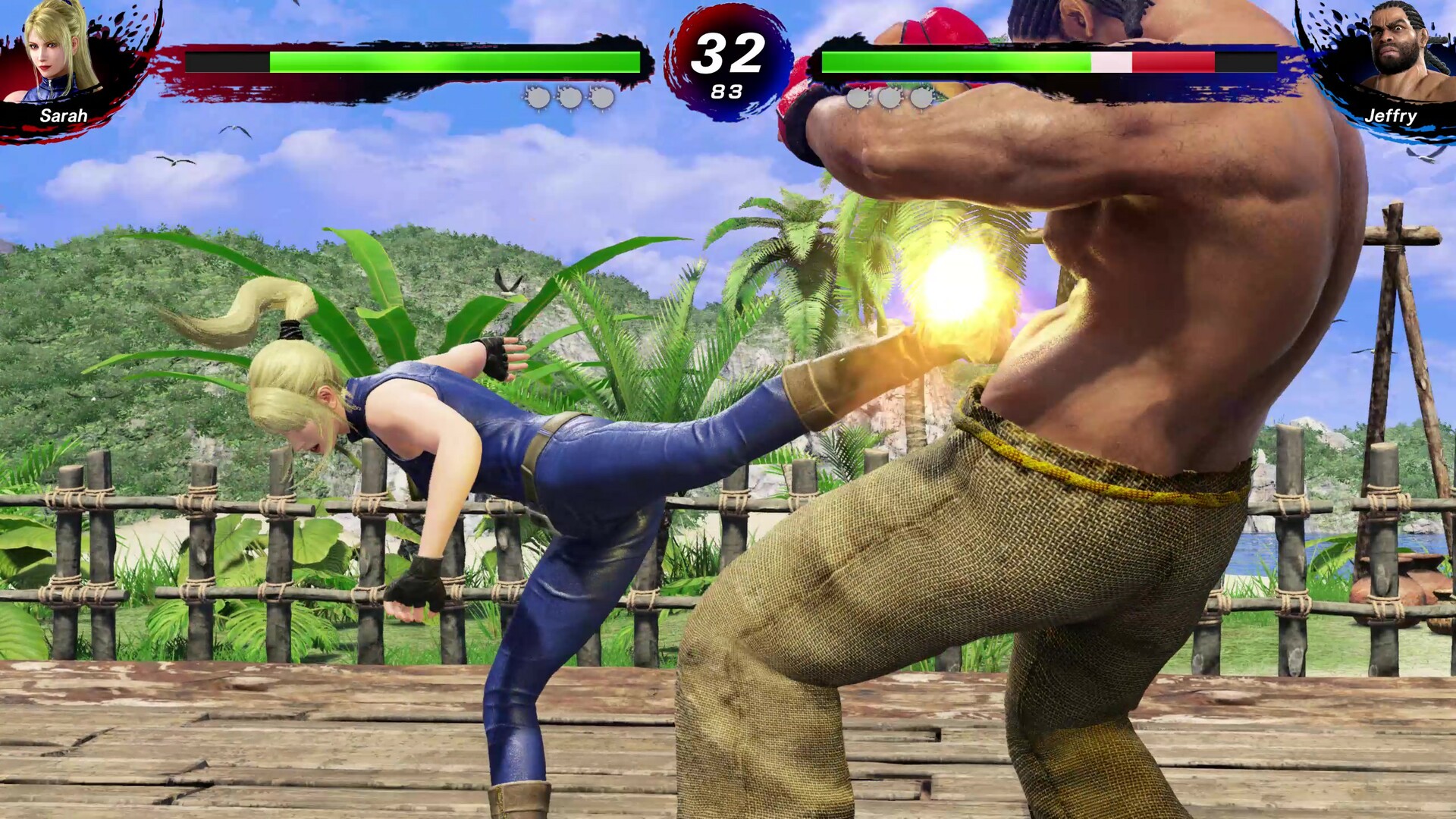
Virtua Fighter 5 R.E.V.O. (VF5) is a PC port of Virtua Fighter 5: Ultimate Showdown for PlayStation 4 with Steam integration and rollback networking. It uses the Dragon engine developed by Ryu Ga Gotoku (RGG) for the Yakuza and Like a Dragon games. It uses Microsoft's DirectX 12 graphics interface introduced in Windows 10. VF5 depends on a consistent 60 frames per second (FPS) for its fast and fluid gameplay. Any change, from a stutter to complete slowdown, is noticeable to everyone. This is especially important in online play, as the rollback networking is highly dependent on frame rate. So let's go over the Graphics settings and get you a smooth 60 FPS. No, the game doesn't go over 60. To get to these settings from the main menu, click the big gear icon then click Graphics Settings. (The overlay in the bottom-right is RivaTuner Statistics Server.) FPS In the top right of this menu is the FPS counter. It should say "FPS: 60f" just like the picture above. If not, then continue on with this guide! The game does not go above 60 FPS. GPU This should be the full name of your PC's graphics processing unit (GPU). Your PC's processor (CPU) might have a GPU integrated inside the processor, and it might be displayed here. If you have a GPU separate from the CPU, those generally perform better than the CPU's GPU. If you can change this item in your menu, make sure it is set to your fastest GPU. Display For people with multiple monitors, this item chooses which display will show the game. For people with a single monitor, this item says Display 1 and cannot be changed. Display Mode This item determines which window mode to show the game. There are three options: Fullscreen The game uses the full display in an exclusive manner and no other windows on your display are visible. Windowed The game uses a window with borders and management buttons like other windows on your display. Borderless The game uses windowed mode like above, but it doesn't display the borders and management buttons. In most cases, the Borderless option is ideal as you switch to other applications with ALT+TAB. Fullscreen mode can "freeze" when using ALT+TAB. Resolution This item controls how many pixels of your display are used to show the game. In general, this should be set to your monitor's native resolution as indicated in your monitor's instruction manual or technical specifications. In extreme cases, it is best recommended to use the Performance Improvement Settings menu rather than this item to keep the game's user interface (UI) at best quality. Refresh Rate This item changes how often your monitor will display a new image of the game per second. This is only available in Fullscreen Display Mode and should be set to the maximum number as indicated in your monitor's instruction manual or technical specifications. V-Sync This item enables or disables your monitor's vertical sync. Typically it is disabled for games. If you see tearing artifacts during gameplay that bother you, enable this setting. Graphical Quality This item cycles through various presets for the Advanced Graphics and Performance Improvement Settings menus. If you prefer not to read on, then choose a preset, save settings, and see if the FPS counter reads 60f. FPS In the top right of this menu is the FPS counter. It should say "FPS: 60f" just like the picture above. The game does not go above 60 FPS. Texture Quality This item controls color quality for every object in the game including players. There are three options: High, Medium, and Low. This setting depends on your GPU's VRAM (video random access memory) and generally does not affect performance. However, overloaded VRAM can cause significant FPS drops as your PC moves texture data in and out depending on what's visible on screen. If you notice FPS drops during camera rotations, you may need to turn down texture quality. Texture Filtering This item controls how textures look when not viewed at a 180 degree angle. You can keep this setting at 16x. Reduce this only when other options are exhausted. This is also known as anisotropic filtering. The best example of this setting is the training room ring. Shadow Quality This item controls the appearance of shadows. In general you can leave this on High. In cases of CPU bottlenecking (the CPU is the limiting factor of FPS), turn it down. Realtime Reflections This item enables or disables reflections that update in real time. This is a GPU intensive option that gives noticeable visual quality, but during matches you are not likely to notice it. Turn off if GPU bottlenecked. This is also known as screen space reflections. The best example of this setting is the river stage. Motion Blur This item enables or disables blurring when an object is in motion relative to the camera. Motion blur is primarily a personal preference as it rarely affects FPS. SSAO This item enables or disables screen space ambient occlusion, which adds shadows where objects connect to give the appearance of depth. This can affect FPS but other settings should be changed first. Anti-Aliasing This item changes the method of anti-aliasing, or the appearance of pixels on the edges of objects due to color variations. From left to right the options are ordered by performance impact and image quality: Off No antialiasing is applied. This offers the worst quality but the best option for performance. Default Only RGG knows what kind of antialiasing this option does. FXAA Fast approximate antialiasing was invented by NVIDIA but works on all GPUs. MLAA Morphological antialiasing uses the CPU to find edges in the image and refine them. TAA Temporal antialiasing uses previous frame data to blend colors together. This offers the best quality but is the most GPU intensive. The upsampling options in Performance Improvement Settings override this setting. This option is mostly personal preference as even TAA does not adversely impact FPS. Depth of Field This item enables or disables depth of field, or the intentional blurring of parts of the screen to divert your focus to unblurred parts. This can be turned off without affecting gameplay. Multisampling This item enables or disables multisampling antialiasing. This is a GPU intensive process involving doubling (or more) the render resolution to find aliasing and correct it, but it delivers noticeable image quality improvement. FPS In the top right of this menu is the FPS counter. It should say "FPS: 60f" just like the picture above. The game does not go above 60 FPS. Upscaling This item enables or disables upscaling methods that use various techniques to run VF5 at a lower resolution for better frame rates but image quality comparable to native resolution. The options are: Off The game is rendered at the resolution indicated in the main Graphics Settings menu. NVIDIA DLSS Only for NVIDIA RTX GPUs, deep learning super sampling uses artificial intelligence. AMD FSR 1 Available for all, FidelityFX super resolution version 1 uses a sharpening technique. AMD FSR 3.1.2 Available for all, FidelityFX super resolution version 3.1.2 uses temporal frame data and frame generation. Intel XeSS Available for all, Xe super sampling uses artificial intelligence. Intel Arc GPUs gain additional visual quality improvements. Which option depends on your GPU and personal preference. Quality This option varies based on the chosen upscaling method, but it is ordered from left to right by best image quality but lowest performance improvement. Sharpness This item adjusts how much sharpness is applied to the screen to counter the blur caused by antialiasing and upscaling methods. This option is personal preference. Low Latency Mode This item enables or disables NVIDIA reflex low latency for NVIDIA GPUs. It prevents the game from rendering more than the GPU can handle and causing input latency when the GPU is overloaded. NVIDIA Reflex Boost This item enables or disables the boost option of NVIDIA reflex
ИсточникGHub Platform · автор06.09.2026, 23:14:40
Virtua Fighter 5 R.E.V.O. (VF5) is a PC port of Virtua Fighter 5: Ultimate Showdown for PlayStation 4 with Steam integration and rollback networking. It uses the Dragon engine developed by Ryu Ga Gotoku (RGG) for the Yakuza and Like a Dragon games. It uses Microsoft's DirectX 12…
Войдите, чтобы писать в группе