PA:Titans: System Designer
GHub Platform · Гайд · 0 ответов · 15 просмотров
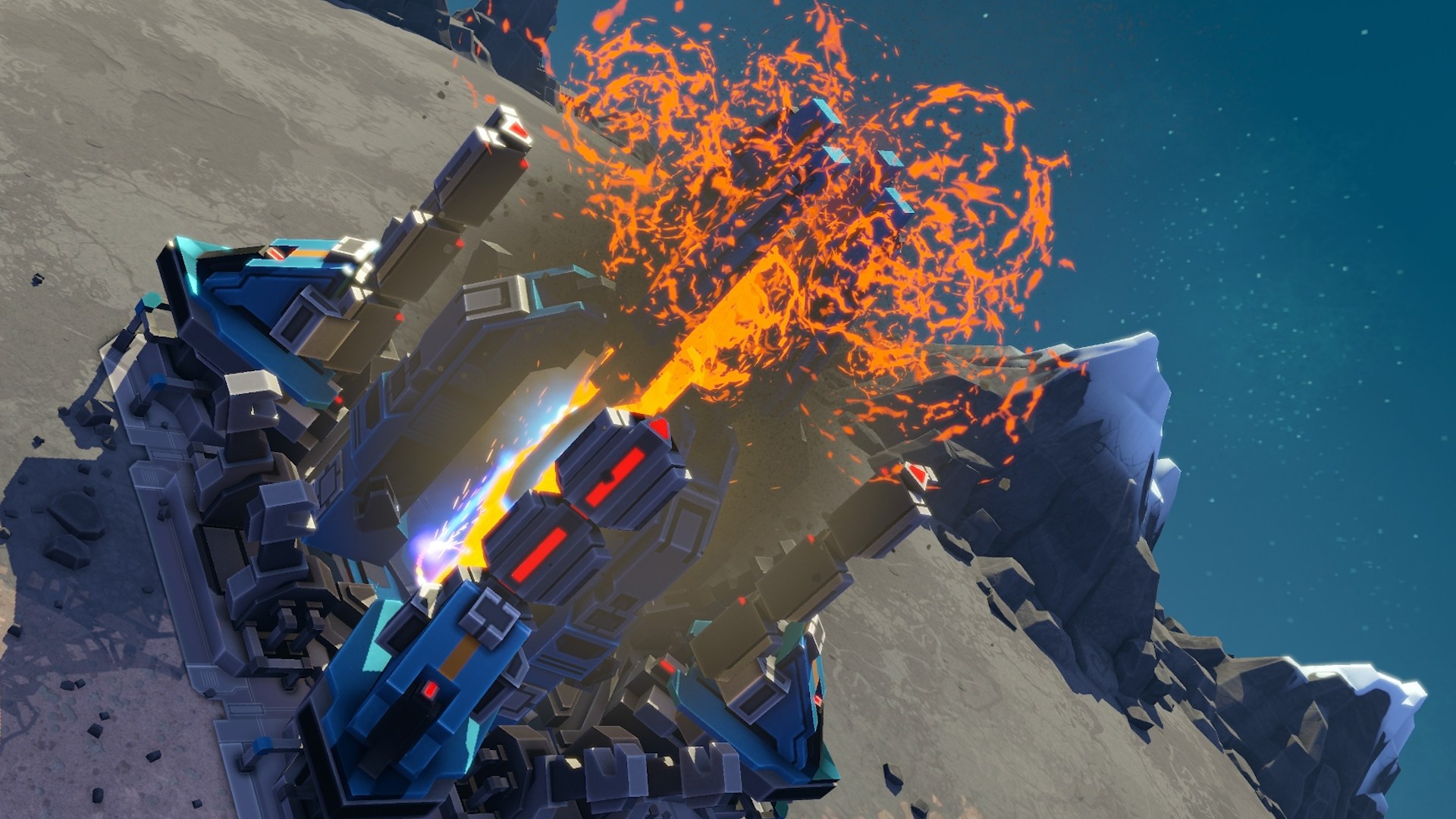
This guide is here to show all you people the power of the system designer in PA and PA: Titans. 99% of the games i encounter use stock systems, and this is not a bad thing. However, variation can increase the fun you have by a large amount. That's why we're gonna make our own systems today! I will show you what everything does, what key bindings are useful and I will also tell you what limitations I have found during system creation. Planet laws If a planet touches another planet, both planets will explode, so make sure you make the orbits not intersect each other (unless on purpose). Gas planets cannot have their appearance changed safe for color. Metal planets will always have building spots for catalysts, which CAN be obstructed in advanced edit to stop this. Other planets can never supports catalysts. Lava planets are the only planets containing lava. Starting off we're gonna open the system designer, found in the main menu. After clicking this, the following menu will appear with all your saved systems. By clicking 'New system' the game gives us a whole empty solar system to toy with: To play on this system, we're gonna need at least one planet. You can select a starting planet in 'Templates', 'Recent' if you have made some planets lately or in 'My planets' if you have previously saved a planet you liked. I'm gonna go ahead and take a basic moon: By clicking the moon template, you're given the planet and first have to put it into an orbit around the sun. This orbit mostly matters when playing with multiple planets. After putting it down somewhere, you can still adjust this orbit by dragging the planet with LMB, dragging the blue inclination button or by adjusting the numbers in the X, Y and velocity boxes. The mass changes the way the planet behaves with other planets. This will be shown later in the guide. Now we click 'Edit planet' to make the moon just how we like it. This shows the following menu: Now you might say something like "Stop Scarking, that's too many options for me and I might f*ck up!". Don't worry, there's no humans on the planet so you can disfigure it as much as you like! First of all, we can change the name here. I personally change this last because it's not important and I like to give planets a name that suits their appearance. Secondary, we can choose if this is a starting planet. If we do, the game will automatically assign some spawn points to it so you can spawn there. Terrain Editor The game automatically assigns a random seed to your planet. This seed determines what the details look like. You can adjust this seed if you don't like the planet as it is. If you actually wanted the moon to be a desert planet, you can adjust this at the Biome part. Now we get to the first major gameplay changing slide-bars. Fun! The radius logically changes the size of the planet. Want to play with 10 people? You'll probably want to increase this radius to something around 800+. Want it to be a small moon able to smash on planets? 250 might be more suitable for that. Following is the Height range. This simply changes the amount of height difference your planet has. If you put it at 0, your planet will be close to completely round, while at 100 your planet will look like a disfigured ball made of goo. Next is another major gameplay changer. The water coverage changes how much land of your planet is covered in water. At 100, you'll most likely have a waterworld, while at 0 you'll have a nice desert. On lava planets, this can be used to increase the lava level instead of water. This allows for some great objective changes if used correctly, like a planet with islands or continents only crossable by hover and air. The Water Depth is primarily a gameplay function: it determines where the water is deep / shallow. Deep water means that naval units can get closer to the shore. Shallow water means that naval buildings and units can hardly be build anywhere. Last but not least is the Temperature. The temperature does not make an earth planet a lava planet at max, but does change at what height the terrain changes to ice. At 0 all land will be either rock or ice, while at 100 it will either be rock, desert or ground. Temperature is also the only option able to change the outside appearance of a gas giant. By changing it the color changes! The terrain editor also offers the possibility to change add symmetry. Basic terrain symmetry will make land and water symmetrical. Terrain and CSG symmetry will also add symmetry in the obstacles, like mountains, cracks and plateaus. Spawn points and metal spots can also be made symmetrical. To see what the planet looks like right now, we can preview terrain as well as gameplay. The gameplay preview shows metal spots and spawn points if the planet is a starting planet. This is what our moon looks like right now: Gameplay editor The gameplay editor offers some simple options. The first being how much metal is on the planet and in what kind of groups the metal is spawned. More metal density=more metal, higher metal clusters = many groups of metal spots, while there are little metal spots outside of these groups. A very important question is; do we want this moon to be smashable into other planets? If yes, you can change the 'Thrusers Required For Attack' from 0 to whatever you like. A normal amount is ~3, but if you want to rush it, you can change it to 1 or increase it to 20+. You can change how the spawn points are added. Personally I don't attach much value to these options but you can increase the landing zones / army and the size of these spawn points. The maximum allowing the player to spawn on almost half of the planet. You can preview the landing zones per number of army but this will not change the gameplay in the finished result. Are you wanting to learn more? Then scroll on further! Do you like the planet and want to use it multiple times? Save it as template! Are you done with the planet? Click close in the right bottom corner. Are you done with the system? Change the name to something cool and click 'Save system', then click 'close' in the top right corner to finish editing. Now, we might think our moon is abit boring, but the options we have are not sufficient. Then the only next option is the 'Advanced Edit'. Before opening this, be sure you're happy with the SHAPE of the planet and the spawns. This includes everything in the Terrain Editor and the spawnpoint size. This cannot be changed once we're in the advanced editor: The initial menu is quite simple. We can edit the CSG, this is the editor for the mountains, buildings, cracks etc on the planet and the most fun thing in the designer. We can add/remove metal spots and we can add/remove landing zones. Let's get started with the CSG editor: Immediately the game renders the models of the brushes that are present on the planet. All these brushes can be removed or changed after clicking them. To edit them, the following controls are used: Delete - Delete the object D - Enlarge the object A - Shrink the object E - Rotate the object CW Q - Rotate the object CCW S - Lower the object (often bugged: reload the CSG editor to fix this bug) W - Raise the object (often bugged: reload the CSG editor to fix this bug) Note that all of these options can be sped up by holding shift. (Shift + W will not work for me personally though). Another rhing to remember is that when creating an empty planet, always leave at least 1 object! If this isn't done, the game won't save the changes and you're off at the start. To counter this, you can shrink that one object down so no one sees it. Now lets go ahead and enlarge a crater with Shift + D. After doing this, we can preview the change by clicking the EDIT button of either the CSG, metal or landing zone. If you're lucky, the height of the metal spots gets automatically adjusted. Sometimes they get removed too because they are in conflict, saving you some time! Now this crater is a bit standard, so let's add a d
ИсточникGHub Platform · автор07.09.2026, 01:51:13
This guide is here to show all you people the power of the system designer in PA and PA: Titans. 99% of the games i encounter use stock systems, and this is not a bad thing. However, variation can increase the fun you have by a large amount. That's why we're gonna make our own sy…
Войдите, чтобы писать в группе