Steam Deck - Installing Deus Ex Invisible War with the Visible Upgrade Mod
GHub Platform · Гайд · 0 ответов · 3 просмотра
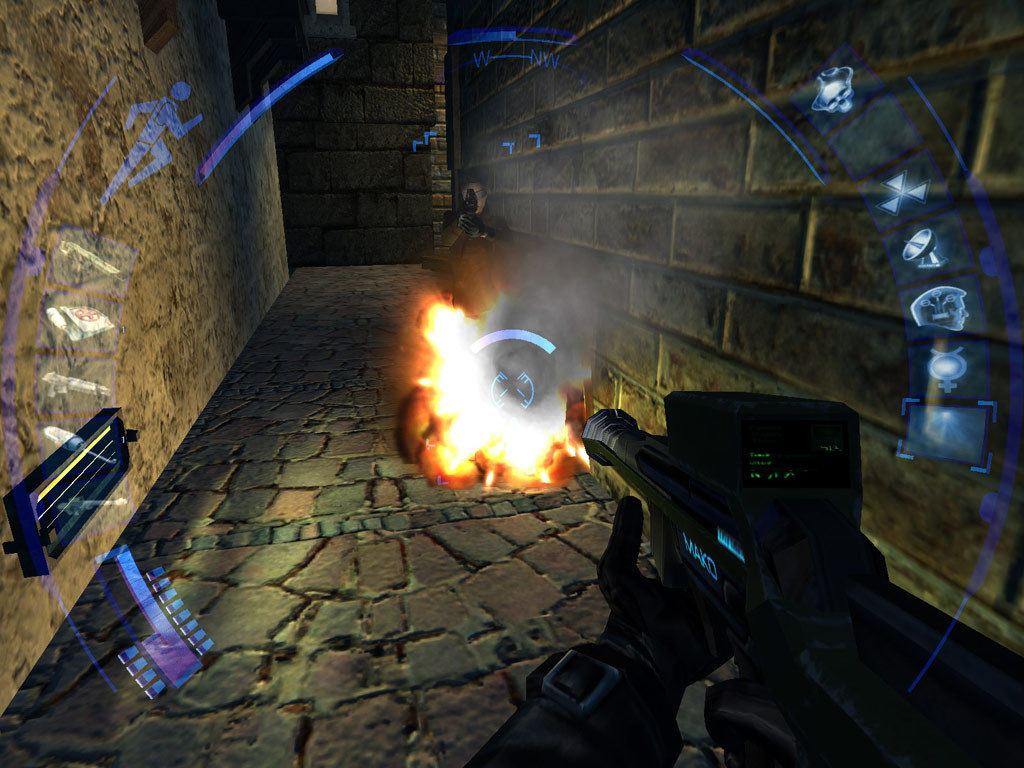
This was the first game I decided to play on my Steam Deck. The Visible Upgrade mod is basically necessary in 2023, since it allows for a wider range of resolutions (including the Deck's native 1280x800), as well as things like faster loading times and improvements to the Field of View (FoV) and a bunch of other things like better textures. To make the game perform well on the Deck's hardware, it is also necessary to install the dgVoodoo2 wrapper . As the Steam Deck runs a Linux-based OS, this took some tinkering - this guide will hopefully save you some time when setting this all up. I have tried to make this guide as basic as possible to help people who, like me, are approaching this with absolutely no idea how to use Linux. Also, if you find this guide useful, I wrote similar ones for the original Deus Ex and Vampire the Masquerade: Bloodlines . To get this working, you will need the following files. Visible Upgrade Mod (I used 1.2 which is the newest version) dgVoodoo2 Wrapper [archive.org] (Note: I used 2.81, and users have reported in the comments that some later versions do not work, so this is an Internet Archive mirror of a working version of 2.81.3) You should either download these directly on the Steam Deck in desktop mode, or download them on your computer and transfer them over via USB key or by some other means. You will also need to install ProtonTricks, but this is covered in the guide. 1. Download Deus Ex: Invisible War through Steam. Run the game once, then quit it from the main menu. 2. Switch your Steam Deck into Desktop mode. Open "Discover" using the menu or the icon on the taskbar. Search for ProtonTricks and install it. ProtonTricks can be used to run .exe files on the Deck, so we will need it. 3. Navigate to wherever you put the Visible Upgrade installer. My installer's filename was Setup_DX2VisibleUpgrade_Full_1.2.0.exe, but yours might be different if a newer version is released in the future. 4. Right-click the setup exe file and select Open With -> ProtonTricks Launcher. It should come up with a list of programs - select "Deus Ex: Invisible War: 6920" (shown below). If it does not appear in the list, you forgot to run the game in step 1. Click through the installer normally - I recommend installing the texture pack. 5. Navigate to the game's installation folder. You can do this by opening Steam, right-clicking the game in your library, and selecting Manage -> Browse Local Files. 6. Go into the System folder, and open VisibleTweaker.exe with ProtonTricks in the same way as above. Once again, select "Deus Ex: Invisible War:6920". 7. This will open VisibleTweaker, which is the program you use to configure the mod. Set it up however you like using the menus on the left. It's important that you set the resolution as described here (in bold), but the rest of the settings are personal preference. The settings I changed from default, and the pages they can be found on, were: Overview - Unified Texture Pack Master Enable: Enabled Display - Custom Display Mode: 1280 (W), 800 (H) (shown below) Display - FOV Factor: 1.10 Tweaks - No Intro Movies: Enabled IMPORTANT - You MUST click "Apply" in the bottom left corner or none of your settings will apply! Once you have done this, press "OK" to close the Tweaker. 8. Now we must install dgVoodoo2. Navigate back to the System folder in your game's installation directory. Copy your dgVoodoo zip into this System folder, open it with Ark, click "extract", untick "Extraction into Subfolder" on the right, then click "Extract". If this goes wrong and dgVoodoo ends up in a subfolder, copy the contents of that folder into System. You want dgVoodooCpl.exe to be in the same folder as dx2.exe and the tweaker. 9. Open the MS folder, then the x86 folder. You should see 4 .dll files (D3D8.dll, D3D9.dll, D3DImm.dll and DDraw.dll). Copy all four of these .dll files into the System folder (it should look like the image below) 10. Open dgVoodooCpl.exe with ProtonTricks, again selecting "Deus Ex: Invisible War: 6920". In dgVoodoo, set the Output API to "Direct3D 11 (feature level 11.0)" (shown below). Click the DirectX tab, then untick "dgVoodoo Watermark". Click Apply, then OK. 11. In Linux, the .dll files in the game folder do not automatically override the system dlls. You need to specifically tell the OS that the .dll files we put into the System folder are the ones we want to use. To do this, right-click Deus Ex: Invisible War in your Steam library, click "properties", and paste the following line into "Launch Options" at the bottom. It must be pasted EXACTLY as given, or it will not work: WINEDLLOVERRIDES="d3d8=n,b" %command% 12. Select a sensible controller mapping. There are lots of good ones on the community page, but I must shamelessly plug my own: Invisible War by Debaser . This control scheme was designed with the following features in mind: - Allows you to move, look, jump/duck and shoot all at the same time - Gives buttons to the most commonly-used augs (Speed and Regeneration, although you can choose whichever you like) - All inventory slots and other augs bound to a radial menu on the left touchpad - All common functions bound, including the enter key for menus - Inventory functions all on the D-Pad - Common actions (switch to weapon 1, flashlight, swap weapons) bound to face buttons 13. Run the game. You might find that the resolution is still a bit weird and that you can't reach the menu options with the mouse. If this is the case, use the button mappings to go into "Options" and then "Video" (if you're using my mapping, you can do this using the left analog stick and the left trigger to confirm), scroll down to "Resolution", and change it to 1280x800 using the left analog stick. Press "Esc" (view/select button on my layout) to save and confirm. Quit the game and run it again, and this should be resolved. If you followed these steps exactly as given, you should now have this running perfectly with the Visible Upgrade mod on the Deck. Enjoy! --- Источник: https://steamcommunity.com/sharedfiles/filedetails/?id=3009195769
ИсточникGHub Platform · автор10.09.2026, 11:38:42
This was the first game I decided to play on my Steam Deck. The Visible Upgrade mod is basically necessary in 2023, since it allows for a wider range of resolutions (including the Deck's native 1280x800), as well as things like faster loading times and improvements to the Field o…
Войдите, чтобы писать в группе