Cossacks 2 Essential fixes to enjoy the game in 2026
GHub Platform · Гайд · 0 ответов · 3 просмотра
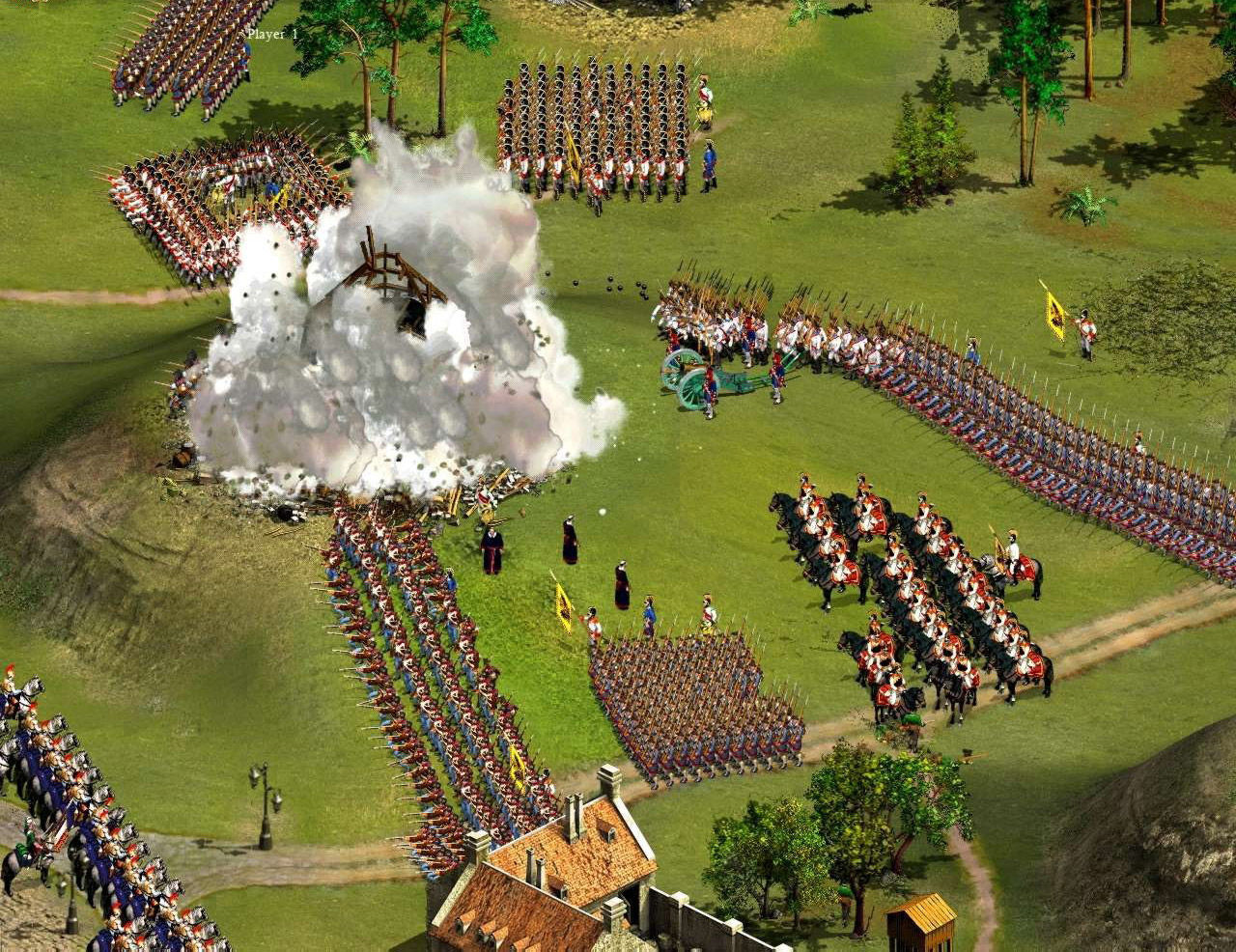
Here are a few simple steps to make the game fully ready for a modern system without using cringe fan mods and sus executables. It's a shame that people are turned off by the technical state of the game without trying this uniquely cool RTS. Let's fix it! 😎 This game uses DX8, so first we're gonna change the renderer with DXVK. It is a fantastic open-source project that would translate DX8 calls to Vulkan. This alone fixes many graphical problems and improves compatibility with overlays, which can otherwise cause startup crashes. Go to the releases page [github.com] and download the latest build. It's a single archive named something like "dxvk-3.0.tar.gz" (or a newer version). Inside you will find a folder named "x32" . Copy only these two files into the game root directory: d3d8.dll d3d9.dll I tested two latest versions, 3.0 and 2.7.1, both work great. Capping the framerate to 60 fps is mandatory. Without it, the game can suffer from bugs such as: slow-motion, animation glitches, failure to capture villages and following roads. DXVK limits the game to 60 fps automatically, but if for some reason it does not, create a file named "dxvk.conf" in the game's root directory and add this line: d3d9.maxFrameRate = 60 ℹ️ Note that you can also use dgVoodoo2 but it is not open-source and can't cap framerate, so you'll need RTSS or a similar tool. But it's still a valid alternative. The game uses exclusive fullscreen and while you might tolerate it, the main menu is fixed at 1024x768 which would always cause resolution change back and forth and sometimes would lead to your desktop resolution being altered after the game is closed - it's just a horrible experience that's easily fixable. Download DxWnd from sourceforge [sourceforge.net] . This is another fantastic open-source project that's a must have in every legacy game enjoyer's toolbox. After launch: 1. Right-click the main window and select "Add". 2. In the "Main" tab : At the top: - Select path. Navigate to your "steamapps\common\Cossacks II Napoleonic Wars" and select "engine.exe". In the "Position" block: - Check "Hide desktop background". This will fill the background with black when in main menu. - Check "Keep aspect ratio". This will keep main menu ratio when stretching. - Check "Adaptive ratio". Since the menu is a fixed 1024x768 size, the game would change resolutions when in and out of the menu. This allows game window to resize correctly when that happens. - Select the "Desktop" radio button to set window size automatically to your desktop. 3. In the "Video" tab : Go to the "Screen resolution" section and check: - Check "Native" radio button. - Check "Fix aspect ratio". This will make the game list correct monitor resolution options in the settings. 4. We're done, click "OK". ℹ️Launch the game via Steam as usual, not the DxWnd window; otherwise, it may sometimes fail to hook correctly. ℹ️Note that you have to keep DxWnd running for it to work. ⚔️ This is for Napoleonic Wars only; the bug was fixed in BFE. It causes your profile to be lost after first launch and also causes a bug that prevents you from starting Battle for Europe mode — it just throws you back to the menu after a confirmation dialog. To fix this: After your first game launch, go to the skirmish mode and start a game. Open the menu (F12), save the game. Open the menu again and save again. You'll notice that the first save was not there. The second save will create a file. Exit the game normally (not with Alt+F4) Relaunch the game - you'll notice that your profile is gone, so create a new one again. This time this profile will persist, you can start playing. Delete your save game that you created before to not accidentally load into that phantom profile later. Basically, the game fixes itself on the second launch, which leads many people to spreading misinfo about random rituals with permissions and compatibility settings. You do NOT need to alter anything in the game folder. For some reason, devs forgot to add a game speed slider, but it is fully configurable in the game settings. Open the file "EngineSettings.xml" in the root of the game directory and look for 5 XML tags that contain the word "speed". Each mode (skirmish,campaign,BFE) can have its own value. I recommend settings them all to the same value. You can use the screenshot below to find the lines with the speed tags ⬇️ The rule is: lower value is faster. I recommend starting with 35 and treating 30 as fast. AI can be very annoying with falling back and dragging things out, so do not hesitate to speed it up. Remember that you can always use pause (Pause/~) to issue commands without hurry. One downside is that UI is fixed at 1024x768 and there's no way to scale it. So there's a hard limit of what resolution would be playable for you. I found it difficult to read UI at 1440p so i prefer to play the game at stretched 1080p. What you can adjust is the global zoom level. In the same file "EngineSettings.xml" , look for the XML tag "CameraFactor" . You can use the screenshot below to find the line⬇️ The default is 3 : smaller values zoom in, larger values zoom out. Change this value according to your resolution, since the game scales everything with it. For example, at 1440p a zoom level of 2 looks great, while at 1080p a similar zoom is around 3.5. I recommend starting with these values. You can omit trailing decimal zeros. ⚠️ Note that the game engine has a hard limit of how much it can render, for example in my testing: max 4.5 at 1080p max 3 at 1440p Anything bigger than those will result in areas off the limit being rendered incorrectly. Small but a neat trick: Cossacks notoriously uses F12 for opening the menu, which interferes with Steam. This can be changed in the file "Dialogs\respanel.DialogsSystem.xml" . It's pretty hard to find so you can follow the screenshot below to find the line ⬇️. I recommend setting it to F11 . Bonus tip for keybinds 🪄If you're a hackerman, you can also search all XML files in the game directory with this regex: <hotkey>(?!none) to find all the binds or the one that's bugging you and change it. Note that there are many XML files, and these keybinds are also separated by game mode (singleplayer, mp etc) or by what's currently selected (cannon, other unit, nothing), so navigating them can be a pain. --- Источник: https://steamcommunity.com/sharedfiles/filedetails/?id=3708276050
ИсточникGHub Platform · автор10.09.2026, 11:48:49
Here are a few simple steps to make the game fully ready for a modern system without using cringe fan mods and sus executables. It's a shame that people are turned off by the technical state of the game without trying this uniquely cool RTS. Let's fix it! 
Войдите, чтобы писать в группе