Running on Linux with Proton and AMD GPU
GHub Platform · Гайд · 0 ответов · 11 просмотров
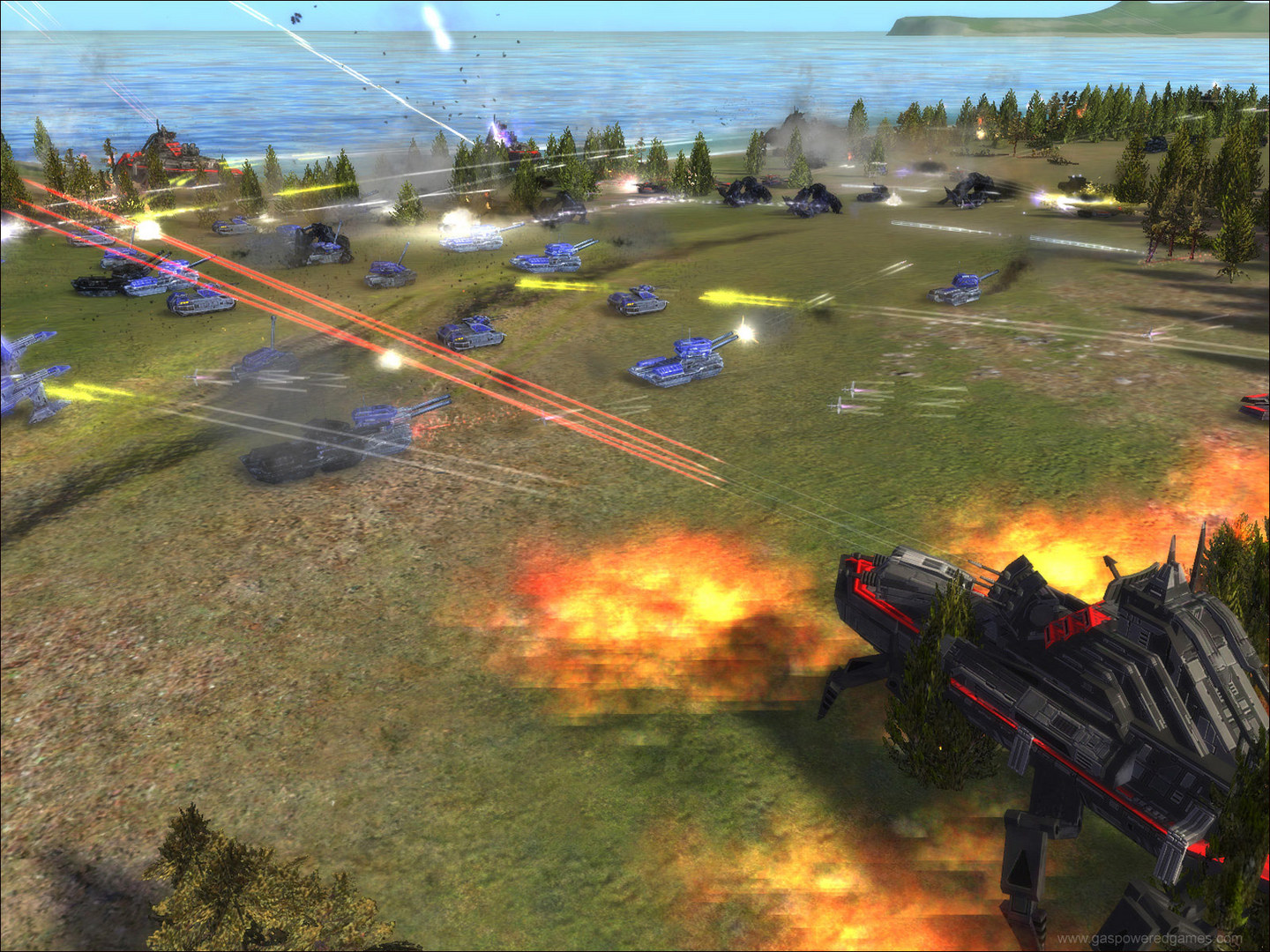
This game doesn't work with Proton as is, because its compatibility with DirectX 9 is not perfect, and this game is sadly not compatible with Proton DX9 -> OpenGL translator. However, those of us with AMD graphic cards can use Gallium Nine instead of a translator - essentially it is an implementation of DX9 rather than translation. This implementation works perfectly with this game. Proton versions shipped by Valve don't have Gallium Nine built in, but you can fix it by installing a custom Proton version. On a plus side, Nine has much better performance, and in some cases it works even better than on Windows. In order to use Gallium both your Mesa3D and Proton have to support it. Unless your distribution disables Gallium on package build it should come with any Mesa >= 10.4 You also must have DRI3 enabled and be on open source drivers, not on AMDGPU-Pro. If you aren't sure or you have issues refer to the ixit website [wiki.ixit.cz] Go to the popsUlfr/Proton [github.com] and get the latest release available, you need the .tar.xz archive. Save it to ~/Downloads You can follow the instructions there, but here they are for convenience In your terminal do the following: mkdir -p ~/.steam/root/compatibilitytools.d cd ~/Downloads #Or the folder you've downloaded the archive to tar xf Proton_3.16-6_Gallium_Nine_Extras_0.3.0.tar.xz -C ~/.steam/root/compatibilitytools.d Replace the file with a newer one if needed, you can start typing Proton and press TAB for convenience Now go into Steam settings and check that Steam Play is enabled for all titles Restart Steam to finish the installation Now you have to tell Proton to use Gallium Nine with this game. You also have to disable esync and (optionally) disable GLSL to reduce stutter. Click on the game and open it's properties Check the "Force the use of a specific Steam Play compatibility tool" box and select the one with Gallium Nine Extras. Click on "SET LAUNCH OPTIONS" Paste this line: PROTON_NO_ESYNC=1 PROTON_USE_GALLIUM_NINE=1 PROTON_NO_GLSL=1 %command% Now the game should run as if it was native. If you have troubles try reading the documentation of this patched Proton and Gallium 3D, but on most modern distros this should not be a problem I want to yet again stress that this will never work for Nvidia or Intel . Since the resulting window doesn't use Vulkan or OpenGL, Steam Overlay will not work. You can, however, enable an FPS counter by adding "GALLIUM_HUD=fps" into the launch options before the %command%. I hope that the guide was useful, it's a great game, and it's a shame that it can't run with normal Proton yet, enjoy! --- Источник: https://steamcommunity.com/sharedfiles/filedetails/?id=1654295440
ИсточникGHub Platform · автор12.09.2026, 04:24:30
This game doesn't work with Proton as is, because its compatibility with DirectX 9 is not perfect, and this game is sadly not compatible with Proton DX9 -> OpenGL translator. However, those of us with AMD graphic cards can use Gallium Nine instead of a translator - essentially…
Войдите, чтобы писать в группе