bun's rift level editor tutorial
GHub Platform · Гайд · 0 ответов · 1 просмотр
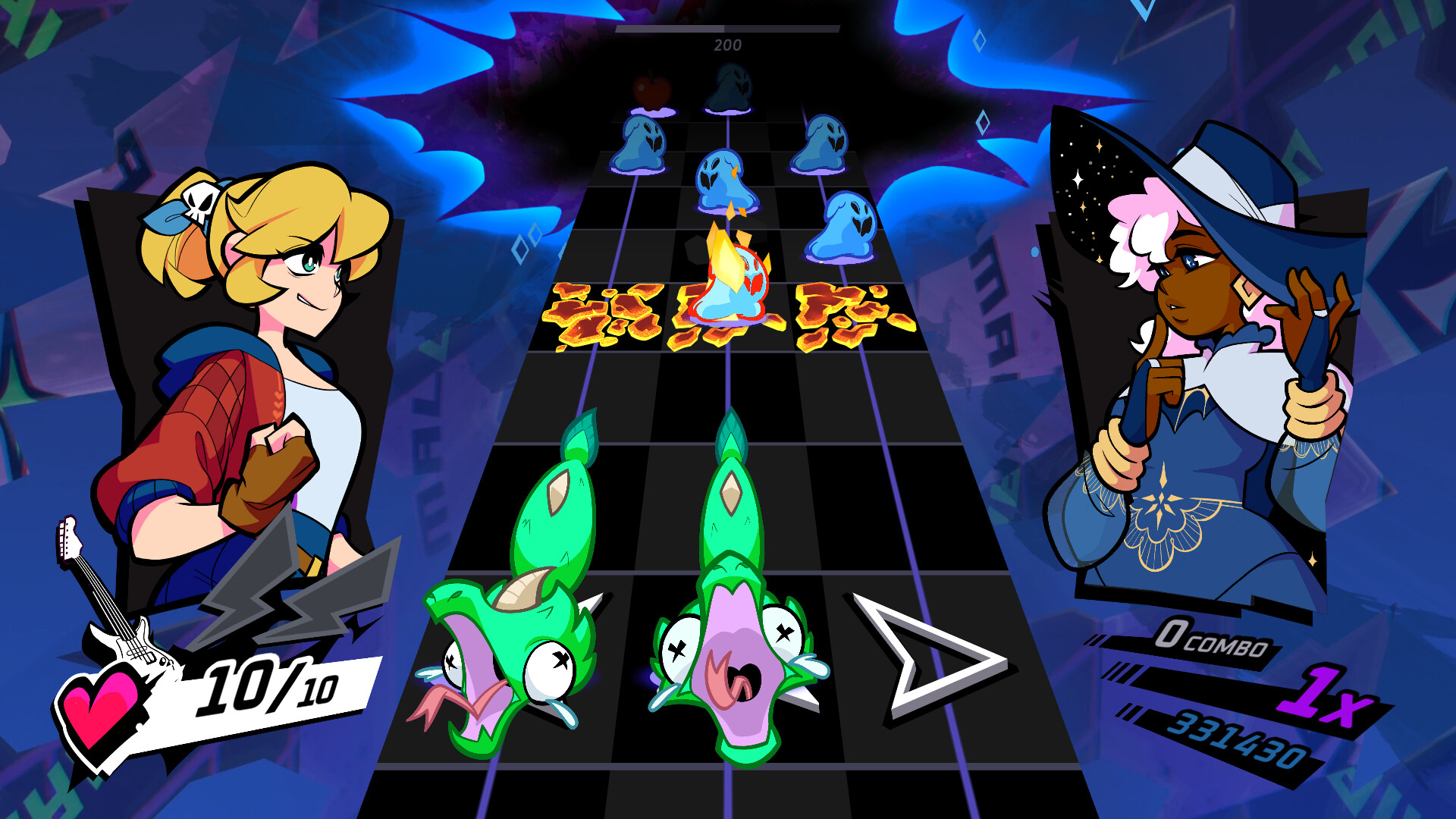
Rift of the Necrodancer's Level Editor is a mouse-focused level editor, based on the level editor from Crypt of the NecroDancer, in which you click to select what you want and click where you want your notes to be. But there are various monsters instead of just notes, and holds. Here are some things to worry about before you start: This editor uses beat subdivision to refer to rhythms. You should change it to allow finer rhythm choices because the entire chart also snaps to the beat subdivision. (except placement by fine tuning) The default starts at 6. (24ths) You can change this value anytime. A subdivision of 12 will usually suffice for nearly all charts. If you are from other rhythm game editors, this is like setting your snapping to a more finer subdivision, which contains other subdivisions inside. Beat subdivision refers to dividing a beat in pieces (1/1, 1/2, 1/3, 1/4) instead of a 4/4 measure (4ths, 8ths, 12ths, 16ths) This guide mentions Row numbers. In this guide, Row 1 is the Action Row, the arrows, and numbering goes up. Row 3 is two rows above the Action Row and Row 5 is four rows above. If there are mentions of keybindings, they would be the default binds. If you are missing keys like Numpad, you should rebind them in the Crypt pause menu, accessible with ESC or the top left corner button. Feel free to change options in the menus. This will be talked about in a section. I might say "chart" instead of "track", "beatmap" or "map", sorry lol Syncing your audio to your charts is super super super important!!! it is a rhythm game!!! For ease of use, your audio file for your level should not be an mp3 file. They have a slight delay in starting, which might be variable, among other issues for rhythm games and will ruin your syncing efforts. Generally, Ogg vorbis and wav files will be fine. There are various methods you can use to sync your audio file. This guide will show two, using ArrowVortex and a click track. You can also look at guides on syncing for other rhythm games like Beat Saber [bsmg.wiki] and dance games like ITG. Levels in Rift of the NecroDancer cannot have enemies that spawn before beat 9*** because they need to travel to the Action Row, so generally this is why the official charts have a countdown. Since Rift v1.3.0 / Editor b5470, you can adjust when the audio starts with a millisecond based offset. Positive values make the audio start earlier while negative values make the audio start later. Depending on how big your offset is, and your countdown, your offset will get capped by the editor and it might be a problem, potentially because of audio systems in Rift. You should adjust your audio file to make the offset smaller. *** (just assume this, it isn't entirely true) You can also set a countdown for your custom levels using the metadata field for your charts, acting the same as it would be in an official chart, with Cadence's voice. This countdown is per-difficulty. You can pick between: "None", the default for new custom levels and customs levels before Rift v1.3.0 "4 beats", the most used countdown in officials, featuring Cadence's voice "8 beats", the countdown typically found in double BPM officials, also featuring the ticking noise In the editor, the countdown will be skipped and will be represented as purple text on the right instead. The countdown also does not affect the offset, or the chart. If you want to embed your own countdown sounds into the audio file, do not include a countdown. If you want to chart the very first beat in your song, you should put the countdown to 8 beats. Otherwise, you can pick whatever you like. Prepare your audio file to sync, with your method of choice. You should also know what the BPM of your song is, and if there are any BPM changes. If there are, you should know where. This guide will assume there are no BPM changes. Using Arrow Vortex ArrowVortex (AV) [github.com] is a rhythm game chart editor primarily used for StepMania and related forks. It features an automatic BPM offset detection function, which is usually reliable for constant BPM songs. Typically, they have a BPM with no decimals. Go to "Tempo" > "Adjust sync" from the top bar to bring up this menu. You should also change your "View" to the C-mod view to bring up a waveform. You can also turn on a beat tick under "Audio" for audible ticks on the beat according to what you set in the menu. You can click on "Find BPM" for a rough guess, or you can manually do it yourself. Your goal is to adjust the music offset so that the grey beat lines up with your song's waveform. The music offset should make it so that the first beat in AV is when the song starts, or potentially later in multiples of four beats. If you seek later in the song and the beat ticks are a bit off compared to the song, your BPM might not be correct. You can adjust the offset quickly by clicking on the Music offset's button next to the textbox and you can also adjust in beats using the numbered buttons. When you are finished, the values you should put in the Rift Level Editor are: BPM: Initial BPM Offset: Music offset in milliseconds multiplied by -1. You can omit the decimal point for milliseconds. If that is confusing, you can also go to the start in AV and look at the value in "Time" at the bottom and put the time in milliseconds, without multiplying. Using Audacity Audacity is an audio editor and recording application. You can sync your song by checking its waveform, or spectrogram if you're courageous. Check for any spikes in the visuals that might indicate a beat, and click on the track where the first spike could appear. You can zoom in and out. Click outside the track and create a rhythm track under "Generate". This brings up a menu to set up creating a rhythm track. Put the BPM of the song here, otherwise you can guess what it is. You can also adjust the number of bars to make it last longer, to extend to the end of the song. When ready, the values you should put in the Rift Level Editor are: BPM: Tempo (bpm) for your rhythm track Offset: The start of your rhythm track. You can click on the start which will snap your selection. You can then read from the time values at the bottom. The old offset, often mistaken as the millisecond offset and behind a developer toggle, is now called the Editor offset. It should be at 4 for all custom levels. You do not need to worry about this if you are just learning about it. You can open the editor either by selecting the option in the Custom Track Select in-game. going to your Steam Library and either search for it (type Rift), or show Tools. If you open the editor from in-game, your game will turn windowed. You can put it back in full screen. For Linux players (i am not a linux player so i am just relaying information) To use the level editor at all, you need to open it up in Steam and click Properties -> Compatibility -> tick "Force the use of a specific compatibility tool" and select Proton Hotfix. If you don't do this, it will just silently fail to start when opened in-game Because of the way Proton works, the CustomTracks folders won't be shared between the game and the editor. you'll have to move files between the two folders manually or link the two folders together. Your View Multiplier (in the editor) The editor might look very small. Because this level editor is based on Crypt, some menus from that game are still present. Of importance are the Display Options for View Multiplier and Language. There isn't a resolution setting, but you can freely resize the window. All the other options can be found on the toolbar cog icon for the editor options, which leads into 3 others. They will be explained later. This menu is accessible by the wrench and screwdriver on the rightmost of the toolbar, or on the next row depending on how much space your window has
ИсточникGHub Platform · автор14.09.2026, 02:24:04
Rift of the Necrodancer's Level Editor is a mouse-focused level editor, based on the level editor from Crypt of the NecroDancer, in which you click to select what you want and click where you want your notes to be. But there are various monsters instead of just notes, and holds.…
Войдите, чтобы писать в группе