Graphical Improvements and Widescreen Fix for Splinter Cell
GHub Platform · Гайд · 0 ответов · 5 просмотров
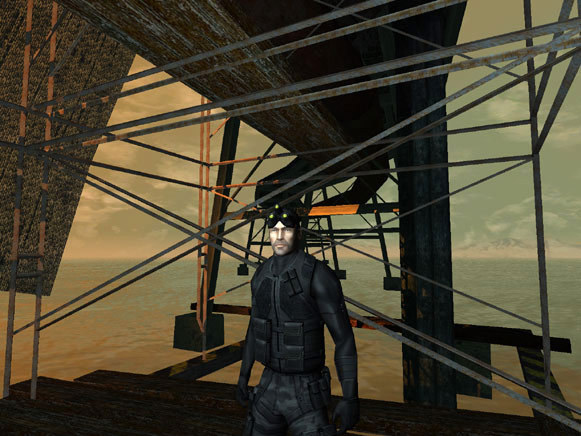
How to enhance graphics and/or enable wide(er)screen for SC1 Ok, so there is a lot of scattered information across these forums and other places on the interwebs, so in an attempt to consolidate all of this information, I am posting it here in this guide into 10 easy steps. Most of it is copied and pasted. I'm not trying to take credit away from anyone, just trying to put it all in one spot because I spent at least 2 hours scouring/trying to understand everything. So here is the quick and dirty way to do this. Please note however, you may want to tweak some of the below settings to your own liking. Step 1. Go to the installation directory for Splinter Cell. (D:\Program Files\Steam\steamapps\common\Splinter Cell\system) Step 2. Open SplinterCell.ini. Step 3. Replace everything under [D3DDrv.D3DRenderDevice] with this: Translucency=True VolumetricLighting=True ShinySurfaces=True HighDetailActors=True UsePrecaching=True UseMipmapping=True UseTrilinear=True UseMultitexture=True UsePageFlipping=True UseFullscreen=False UseGammaCorrection=True DetailTextures=True UseTripleBuffering=True UsePrecache=True Use32BitTextures=True HardwareSkinning=False AdapterNumber=-1 ReduceMouseLag=False UseTripleBuffering=True ; ForceShadowMode flag : 0==projector, 1==buffer, unspecified==auto-detect ForceShadowMode=1 EmulateGF2Mode=1 FullScreenVideo=True UseVsync=True Step 4. Save. Step 5. Close the .ini and then right click on it, go to properties, put a check in "Read-only", and click "OK". Step 6. Open SplinterCellUser.ini. Step 7. Replace everything under [Engine.EPCGameOptions] with this: AnimatedGeometry=True ShadowLevel=3 LightMapsLevel=3 TextureLevel=3 Resolution=1920x1080 AmbiantVolume=99 VoicesVolume=99 MusicVolume=99 AudioVirt=0 Sound3DAcc=false EAX=false InvertMouse=False FireEquipGun=False MouseSensitivity=50 ShadowResolution=3 EnableFadeOut=0 FadeOutNearPlane=1000 FadeOutFarPlane=1250 SFXVolume=99 Brightness=50 Gamma=50 EffectsQuality=3 FadeOut=0 VidMem=2 GraphicsCaps=2 EAX_Capable=False AntiAliasing=3 (Comment: For Resolution=, enter your monitor's actual resolution or your desired resolution. In this example, my resolution is 1920x1080 so that is what I entered) Step 8. Set DesiredFOV and Default FOV under [Engine.PlayerController] = to one of the following based on your monitor's ratio: 4:3 --- 75 15:9 --- 87.61661884 16:10 --- 85.2812718522 16:9 --- 91.3154482287 For me personally I have: DesiredFOV=91.3154482287 DefaultFOV=91.3154482287 For Reference: 15:9 Resolutions 1280x768 16:10 Resolutions 1280x800 1440x900 1680x1050 1920x1200 16:9 Resolutions 1280x720 1920x1080 Step 9. Repeat steps 4 and 5 for SplinterCellUser.ini. Step 10. Open nVidia control panel (or go to similar location for ATI cards) and enable FXAA either Globally or just for Splinter Cell. One down side to changing the FOV is that the mouse/cursor becomes misaligned. I have not found any way to fix this. For example, with the keypads that you come across throughout the game, button coverage with your cursor is as follows: 100% - Normal coverage. The entire button has mouse-click detection. 75% - Normal mouse-click detection except for the right quarter of the button. 50% - The left half of the button is selectable. 0% - There is no mouse-click detection on the button. You must click the left area beside the button. First column 4:3 - 100% 16:9 - 0% 16:10 - 50% Second column 4:3 - 100% 16:9 - 50% 16:10 - 75% Third column 4:3 - 100% 16:9 - 100% 16:10 - 100% This guide has been created from the post by 'TheJudge24' that can be found here . I am posting this as I have been unable to get him to make it a guide and wish to do so for my further personal use and others. Please see any comments for additional help and feel free to request for me to add them to the guide if tested. https://community.pcgamingwiki.com/files/file/740-splinter-cell-ps3-hd-textures/ Download that and open it and find your textures folder for spiller cell there should be a guide in the archive but copy those textures to your folder and replace bam there you go hd textures --- Источник: https://steamcommunity.com/sharedfiles/filedetails/?id=170119402
ИсточникGHub Platform · автор14.09.2026, 10:01:49
How to enhance graphics and/or enable wide(er)screen for SC1 Ok, so there is a lot of scattered information across these forums and other places on the interwebs, so in an attempt to consolidate all of this information, I am posting it here in this guide into 10 easy steps. Most…
Войдите, чтобы писать в группе