How to fix "Fatal Error"
GHub Platform · Гайд · 0 ответов · 1 просмотр
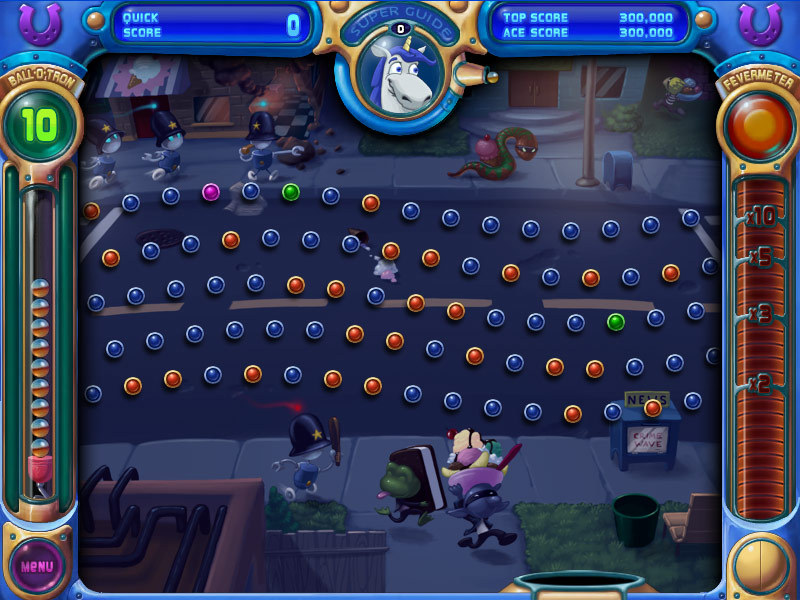
Search for "Registry Editor" in your windows search menu Alternatively you can press win+r and type "regedit" to open it Peggle nights will likely be under Computer\HKEY_CURRENT_USER\SOFTWARE\Steam\PeggleNights (this might not work if Peggle Nights isn't on your main drive, I'm not sure, try putting it on the main if this doesn't work) if it's not you'll have to find it, it will be under a steam folder as "PeggleNights" somewhere in the software section While the folder "PeggleNights" is selected, you should see a list of a bunch of values, there may be less than my screenshot if the game has never fully opened If there is a value called "ScreenMode" in the list, make sure the value to the right is set to 0, if it's not, double click the value and set it to 0 If "ScreenMode" is NOT there we need to add it: In a blank space of the window, right click, hover over "New" and click "DWORD (32-bit) Value" Name this value "ScreenMode" and make sure the value is 0 (the number in the parenthesis), if it's not double click the value and set it to 0 Now, launch Peggle Nights and it should open up normally! Unfortunately the cause of this bug is the game *opening* in fullscreen, so you can set the game to fullscreen while playing, but if you close it while it's still fullscreen, the game will not open again and you will need to reset the value of "ScreenMode" to 0 to get the game to open --- Источник: https://steamcommunity.com/sharedfiles/filedetails/?id=3166429708
ИсточникGHub Platform · автор15.09.2026, 07:26:30
Search for "Registry Editor" in your windows search menu Alternatively you can press win+r and type "regedit" to open it Peggle nights will likely be under Computer\HKEY_CURRENT_USER\SOFTWARE\Steam\PeggleNights (this might not work if Peggle Nights isn't on y…
Войдите, чтобы писать в группе