Low Specs Experience Guide
GHub Platform · Гайд · 0 ответов · 1 просмотр
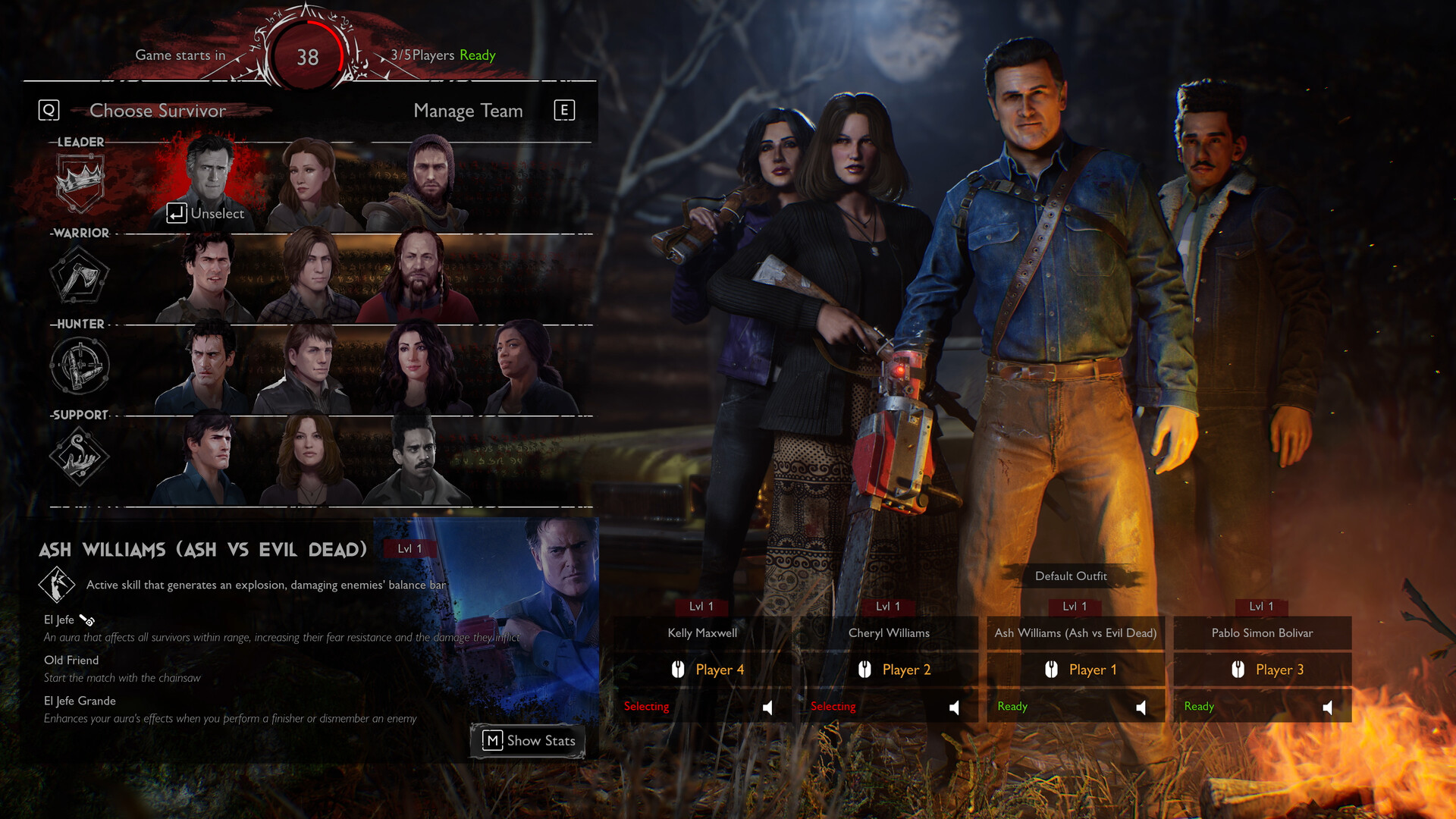
When the devs say: "No optimization for older (or new, lol) hardware!" , I answer: "OK, but I still want to play the game!" Fortunately, games on Unreal Engine 4 can be configured quite simply and intuitively through configuration files that can be opened in notepad . And these are my (old) PC specs (sorry, no money for an upgrade): Windows 10 Pro 64-bit i5-4430 3.0GHz RAM 24GB DDR3 GTX 660 Ti No SSD, only HDD. P.S. Not a big triple-A projects player, but thanks to the UE4 settings, I can still comfortably play games such as: « Grounded », « Ghostbusters: Spirits Unleashed », « Tales of Arise » and of course « Epic Evil Dead: The Game », but with the last one everything turned out to be a little more complicated, since it took quite a lot of parameters to add. Also remind that these are personal settings. They may not be suitable for your PC, but you can change the basic parameters by adjusting it for yourself. Launch the game and go to Video settings. I would recommend to set the Gamma to at least Medium , as some weather conditions can make the game incredibly dark. Also, this video card is already quite old, so I don’t have DLSS settings, so I’ll skip this point. Display Mode: Full screen (It really works better in this one). Resolution: Of your monitor , for me it's 1920x1080 (lowering absolutely didn't change the difference in performance, even tried 720p ). Resolution Scale & View Distance : Can be ignored, because will still be configured via config files, but in case you're wondering, distance is the most favorable setting for this game, so it's definitely desirable to be on high or medium . ALL other parameters can be lowered to the minimum possible value (of course, it's low specs, but don't be sad, the graphics will be much better than vanilla low ones). Also uncheck Motion Blur (bleh) and Tessellation , but with Vertical Synchronization — it's your personal decision. This eats up a piece of FPS , but if you don’t have a COOL GAMING sync monitor, then recommend turning it on, since this game has a console FOV and tears with it look terrible. That's all, don't forget to save ! This important file for this game is located at: C:\Users\<User_name>\AppData\Local\EvilDead\Saved\Config\WindowsNoEditor ( AppData is hidden in Windows, but I guess if you have looked at this guide, you know how to make it visible or just open). All parameters in the configuration files must be changed after the game is closed , otherwise they aren't applied. If any settings have been changed, the game also needs to be restarted . Open GameUserSettings.ini with a standard notepad and look for: • bUseVSync=True or False — is responsible for all the same Vertical Synchronization (just in case). • FrameRateLimit=0.000000 — or change the FPS limit to 60.000000 / 30.000000 , depending on your preference. At the end of the file you will see this section, just replace it with a new one: [ScalabilityGroups] sg.ResolutionQuality=100.000000 sg.ViewDistanceQuality=2 sg.AntiAliasingQuality=0 sg.ShadowQuality=0 sg.PostProcessQuality=0 sg.TextureQuality=0 sg.EffectsQuality=0 sg.FoliageQuality=0 sg.ShadingQuality=0 These are literally the Game Settings itself, but here they can be adjusted to lower ones. It's a funny known fact that you can't set ResolutionQuality to 100 in the game itself ( epic settings are set to 95 , still weird). If you have a more powerful PC, you can also change various settings from 1 to 3 and test the performance. Now Save the file, right-click on it, go to Properties , check the box for ☑ Read-only and Apply . This is necessary so that the game doesn't change the settings to vanilla on its own. In the same folder is an equally important file Engine.ini and this is the place where most of the game's graphics were configured (didn't have to mess around like that with other games). Open it with notepad and add this at the very end: [SystemSettings] bSmoothFrameRate=False r.ScreenPercentage=100 r.SceneColorFringeQuality=0 r.PostProcessAAQuality=1 r.DefaultFeature.AntiAliasing=2 r.DefaultFeature.MotionBlur=False r.MotionBlurQuality=0 r.MotionBlur.Max=0 r.BlurGBuffer=0 r.AmbientOcclusionLevels=0 r.AmbientOcclusionRadiusScale=1.7 r.DepthOfFieldQuality=0 r.RenderTargetPoolMin=300 r.LensFlareQuality=0 r.EyeAdaptationQuality=1 r.DefaultFeature.Bloom=0 r.BloomQuality=4 r.LightShaftQuality=0 r.FastBlurThreshold=0 r.Upscale.Quality=1 r.Tonemapper.GrainQuantization=0 r.TonemapperQuality=0 r.LightFunctionQuality=0 r.ShadowQuality=0 r.Shadow.CSM.MaxCascades=1 r.Shadow.MaxResolution=512 r.Shadow.RadiusThreshold=0.1 r.Shadow.DistanceScale=0.6 r.Shadow.CSM.TransitionScale=0 r.DistanceFieldShadowing=0 r.DistanceFieldAO=1 r.TranslucencyLightingVolumeDim=24 r.RefractionQuality=0 r.SSR.Quality=0 r.SSS.SampleSet=0 r.SSS.Scale=1 r.SceneColorFormat=3 r.TranslucencyVolumeBlur=0 r.MaterialQualityLevel=1 r.EmitterSpawnRateScale=0.75 ➤ Delete the line bSmoothFrameRate=False if you set FPS to 30 or 60 in the previous file. It's also recommended to add this at the end (for more precise mouse control): [/script/engine.inputsettings] bEnableMouseSmoothing=False Just save the file, don't need to set Properties for it. And yes, it's a LOT. Please comment if you find anything unnecessary or incorrect. It'll always be helpful to know, thanks! We have come to the Final . It remains only to set an Additional Launch Parameters in Steam (located in the Properties of the game). And that's -dx11 . . . (yeah, but with it really less friezes!) The game is ready for testing! Thanks to this, I was able to play the game with stable and smooth FPS on my aging PC. Even the Castle Kandar map runs without problems (unlike the vanilla minimals). The only FPS drops occur with a large number of deadlines and effects on the screen (usually when protecting a book ), but this isn't critical. And here's what the game looks like with these settings: Yeah, not the best graphics, but it works! You can also slightly adjust the image through your graphics card control panel , but it can also eat up some FPS (for some reason, my usual settings doesn't work correctly with UE4 projects, it's more for Unity , Ubisoft and some other triple-A games, so I didn't include it in this guide). Also a few sections on known errors / bugs: This bug is quite rare, but it still happens to people even with fairly powerful PCs (in « RDR2 » for example). Textures won't load, turning the world into a soapy plastic mess . The most compressed textures is used instead of standard resolution and it doesn't disappear. This may be due to a lack of video memory, or rather its inability to unload the cache (at least, it's written on various forums). In my case (and with this game), the textures aren't loaded immediately, I have to wait at least 5-10 seconds , but this doesn't prevent from starting to play. All thanks to the above -dx11 parameter. However, if this doesn't help, you can add: -NOTEXTURESTREAMING . This option forces all textures to be loaded all the time, however, this increases the load time of both the game itself and matches. People also use this two optional variants for more performance: -norhithread ( ONLY when -dx11 is enabled ). Disable multi-threaded rendering commands affecting FPS stability. For owners of more than 8GB of RAM: -NoVerifyGC (disable dynamic RAM allocation and reduces the number of friezes). This is a problem of this particular configuration, but it's happens only in the characters models viewing in the asymmetry upgrade menu (and only with a standard frontal pose). The r.ShadowQuality line in Engine.ini is responsible for this and is cured by changing the parameter from 0 to 1 , however, this returns some of the lags to Castle Kandar . If you know another solution, suggest it in the comments! And this funny bug looks like this: " Unreal Engine is exiting due to D3D device being lost. (Error: 0x887A0006 - ‘HUNG’) " — is a common error in games on this engine (a
ИсточникGHub Platform · автор17.09.2026, 03:41:37
When the devs say: "No optimization for older (or new, lol) hardware!" , I answer: "OK, but I still want to play the game!" Fortunately, games on Unreal Engine 4 can be configured quite simply and intuitively through configuration files that can be opened in n…
Войдите, чтобы писать в группе