Enable important graphics options by editing Config (.ini) files
GHub Platform · Гайд · 0 ответов · 3 просмотра
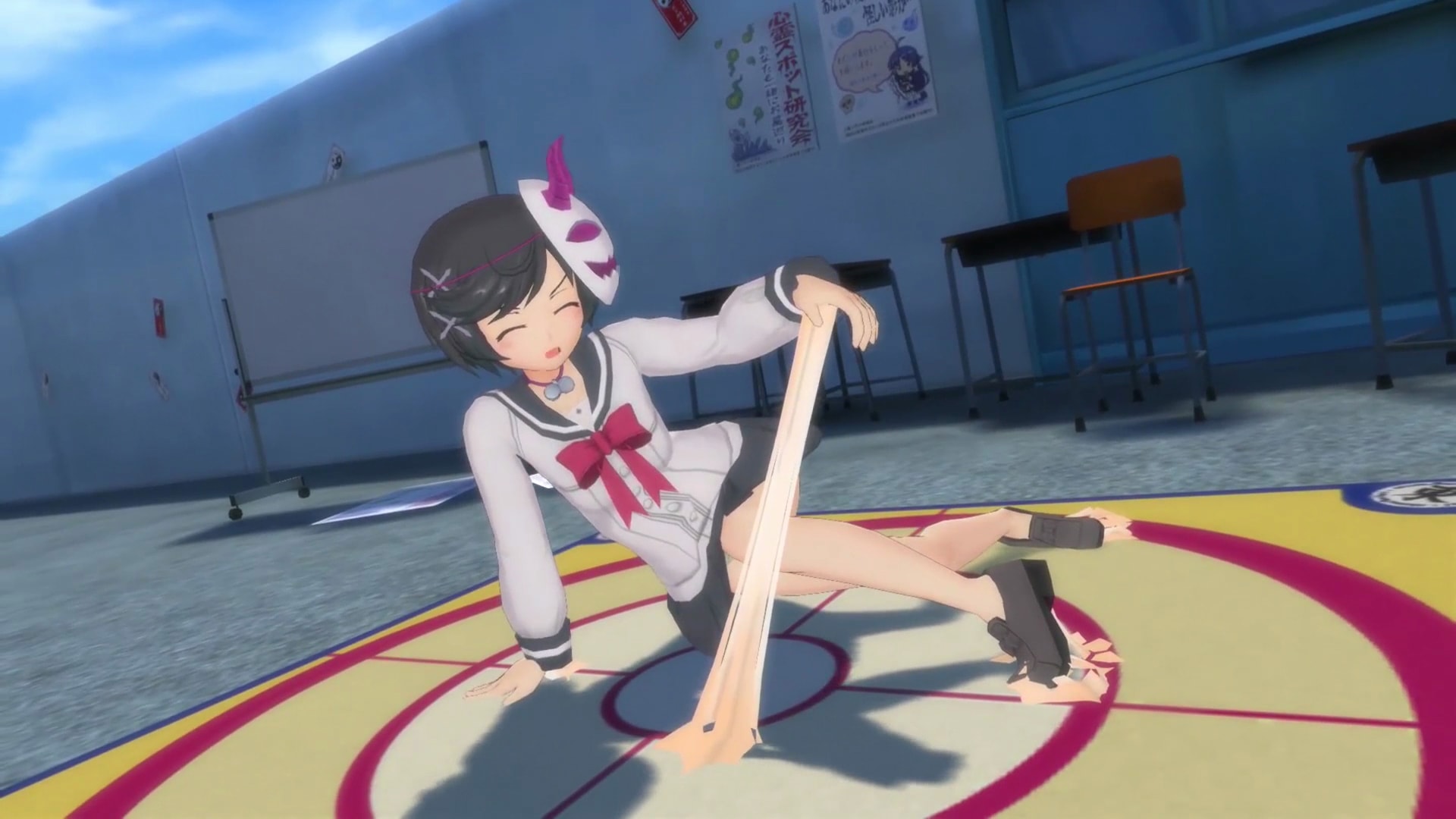
Ensure the game is closed before altering any files. If you see " GG2 Game " in the file name, remove the space. Use your favorite text editor to edit these files. Notepad or WordPad will work fine. I personally use Notepad++. If you find any more noteworthy settings, let me know so I can add them to this guide. This is mainly useful for high refresh rate monitors Known issue: Some elements such as the "Now Loading" screen will play faster depending on your framerate Open My Documents\My Games\UnrealEngine3\GG2 Game\Config\GG2Engine.ini Search for this line: MaxSmoothedFrameRate=62 Set the value to whatever you want Save the file This is basic stuff that should be in the game May have a notable performance impact Navigate to your Steam directory Open \steamapps\common\GalGun Double Peace\GG2 Game\Config\DefaultInput.ini Scroll down to the bottom and append these lines at the very end: .Bindings=(Name="F3",Command="setres 2560x1440f") .Bindings=(Name="F4",Command="setres 3840x2160f") .Bindings=(Name="F5",Command="setres 5120x2880f") The "f" at the end of each line means it will automatically switch to fullscreen when activated You can change the keys and resolution options however you see fit Save the file While in-game, press a key to change to its corresponding resolution This is used to smooth out jagged edges May have a notable performance impact Known Issue: Some HUD elements may glitch out or disappear with MSAA enabled. If this happens, it is recommended to use DSR instead if your PC is capable enough. Open My Documents\My Games\UnrealEngine3\GG2 Game\Config\GG2SystemSettings.ini Search for these lines (note that the Japanese text may appear differently on your machine): MaxMultiSamples=4 bAllowD3D9MSAA=False(PS4時はFalseだった) Replace "=False(PS4時はFalseだった)" with "=True" on the second line Change the value in the first line to 2, 4 or 8 to enable 2x, 4x and 8x MSAA respectively Save the file This eliminates screen tearing Open My Documents\My Games\UnrealEngine3\GG2 Game\Config\GG2SystemSettings.ini Search for this line: UseVsync=False Replace "=False" with "=True" Save the file This removes the borders around the game's window and stretches the game to fit the monitor I can't find a way to do this at all. Not through .ini editing, not through third-party applications, nothing. Let me know if you find a way. --- Источник: https://steamcommunity.com/sharedfiles/filedetails/?id=770988352
ИсточникGHub Platform · автор20.09.2026, 10:30:22
Ensure the game is closed before altering any files. If you see " GG2 Game " in the file name, remove the space. Use your favorite text editor to edit these files. Notepad or WordPad will work fine. I personally use Notepad++. If you find any more noteworthy settings, l…
Войдите, чтобы писать в группе